Table of Contents
Introduction: Mastering Custom Error Bars in Google Sheets
It is frequently necessary to incorporate custom error bars into graphical representations, particularly bar charts, when presenting statistical data. While Google Sheets offers built-in charting capabilities, customizing the error ranges based on specific statistical calculations—such as the 95% confidence interval (CI)—provides a far more accurate and professional visualization of data variability and uncertainty. This level of customization moves beyond simple percentage or standard deviation representations, offering a powerful tool for academic or business reporting.
This comprehensive guide will walk you through the essential steps required to calculate and implement custom error bars within a Google Sheets bar graph. We will utilize statistical functions to determine the precise half-width of the confidence intervals, and then apply these values to the chart series individually. By the end of this tutorial, you will be able to generate highly informative visualizations similar to the example shown below, ensuring that your graphical data precisely reflects your underlying statistical analysis.

Understanding how to accurately plot measures of uncertainty is paramount in data presentation. Let us delve into the structured methodology for achieving this precision, beginning with the necessary data organization.
Step 1: Preparing and Entering the Dataset
The foundation of any robust statistical visualization is accurately structured data. Before we can calculate the error bars, we must ensure our dataset includes all the critical components necessary for calculating the confidence interval for the mean. For our practical demonstration, we will use a dataset detailing the outcomes of an experiment measuring plant growth across three different fertilizers.
This dataset must include three key columns for each group (Fertilizer A, B, and C): the calculated Mean Plant Growth, the Standard Deviation (SD) of that growth, and the total Sample Size (n) used for that measurement. The mean provides the central tendency represented by the bar height, while the standard deviation and sample size are crucial inputs for determining the margin of error.
We begin by entering the raw data into Google Sheets, labeling the columns clearly as shown in the image below. Accuracy in this initial step is critical, as any errors in the mean, standard deviation, or sample size will directly compromise the integrity of the calculated error bar lengths.

For this example, the data structure is assumed to be in columns B, C, and D, with the fertilizer names in column A. This organization facilitates the subsequent calculations, which will be performed in a new column dedicated to the half-width of the confidence interval.
Step 2: Calculating the Half-Width of the Confidence Intervals
The half-width of the confidence interval is synonymous with the margin of error (MOE). This value dictates the length of the error bar extending above and below the mean, representing the range within which the true population mean is likely to fall (typically 95% of the time). Since we are dealing with sample data and the population standard deviation is usually unknown, the appropriate statistical method involves using the T-distribution rather than the Z-distribution.
In Google Sheets, the function designed specifically for calculating this margin of error using the T-distribution is CONFIDENCE.T. This function requires three essential arguments: the significance level (alpha), the standard deviation of the sample, and the sample size. The resulting value will be the exact length required for the custom error bars.
To perform this calculation for Fertilizer A, navigate to cell E2 and input the following formula. We select an alpha value of 0.05, which corresponds to a 95% confidence level (1 – 0.05 = 0.95). The standard deviation is referenced in cell C2, and the sample size is referenced in cell D2.
=CONFIDENCE.T(0.05, C2, D2)
After entering the formula into E2, simply click and drag the fill handle down to apply this function to the remaining rows in column E (E3 and E4). This action calculates the precise half-width of the confidence interval for Fertilizer B and Fertilizer C, respectively. These values will serve as the crucial inputs for our custom error bars in the next step.

It is important to note the specific choice of the significance level: using 0.05 ensures that the resulting half-width calculates the margin of error for a 95% confidence interval. If a different confidence level were desired (e.g., 99%), the alpha value would need to be adjusted accordingly (e.g., 0.01). The official documentation for the CONFIDENCE.T function in Google Sheets provides further detail on its implementation and statistical assumptions.
Step 3: Creating the Initial Bar Chart
Once the data and the necessary half-width calculations are complete, the next step involves generating the base bar chart. This chart will visually represent the mean plant growth data for each fertilizer group before the error bars are applied. To begin, we must select the data range that includes the labels and the means.
First, highlight the cell range containing the fertilizer names (A2:A4) and the mean plant growth values (B2:B4). With this range selected, navigate to the top ribbon and click the Insert tab, followed by clicking Chart. Google Sheets will automatically attempt to create the most appropriate chart type, which should default to a Column Chart (Bar Chart).

At this stage, your visualization should display a simple bar chart where the height of each bar corresponds directly to the mean plant growth recorded for the respective fertilizer treatment. This initial chart provides the central measure around which the error bars will be anchored, visually establishing the primary comparison point.

The resulting chart now visually confirms that the height of each bar accurately represents the mean plant growth for Fertilizers A, B, and C. We are now prepared to customize the visualization by applying the statistically derived measures of uncertainty.
Step 4: Customizing the Chart with Specific Error Bar Values
The crucial step in creating custom error bars involves navigating the Chart Editor and applying the calculated half-width values to each individual data series. Unlike standard error representations that apply a uniform percentage or a single calculated standard deviation, we must assign a specific, unique margin of error to each fertilizer group.
To begin, ensure the Chart editor panel is open on the right side of the screen. Click on the Customize tab within the editor. Locate the Series section and click the dropdown arrow to expand the options. Since we need to assign a different error bar value to each bar, we must select each series (Column1, Column2, etc.) individually, although in a simple bar chart like this, we usually work within the primary series setting unless the data is grouped differently. For this setup, we will customize based on the groups represented by the columns. Choose Column1 (representing Fertilizer A) to start the customization process.
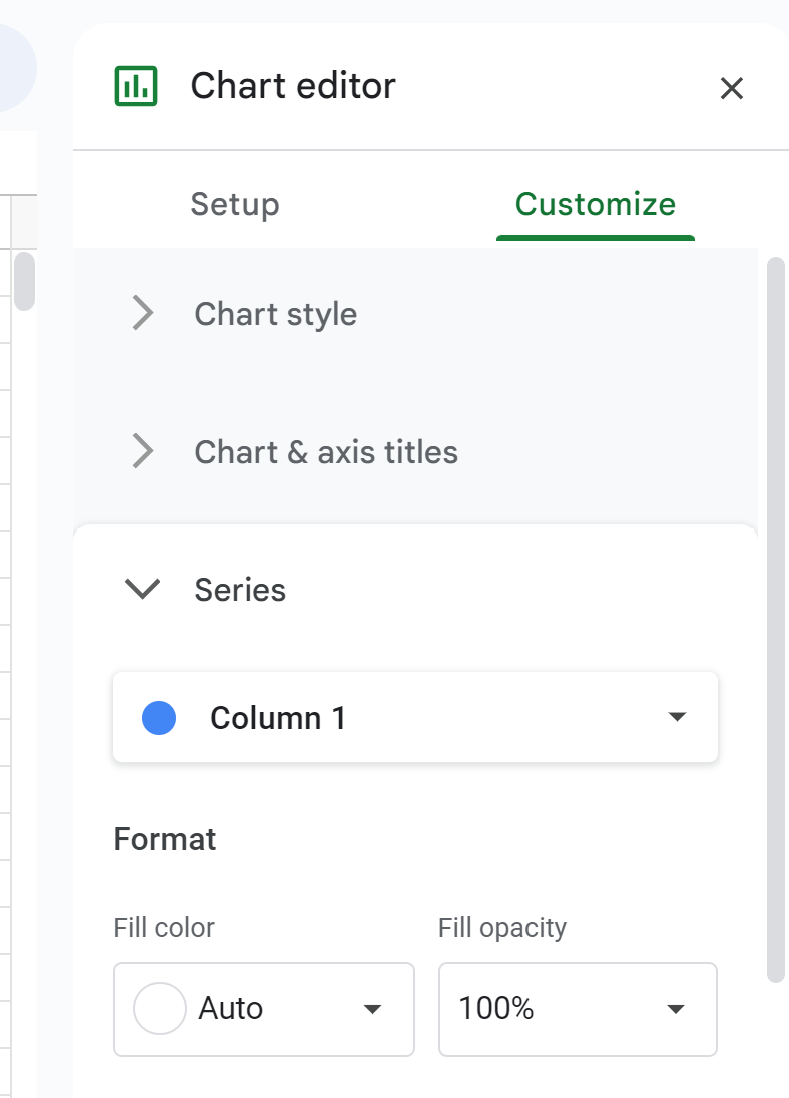
Within the selected series options, check the box labeled Error bars. By default, the Type may be set to Standard Deviation or Percentage. To input our calculated half-width, change the Type dropdown menu to Constant. In the field provided for the constant value, manually enter the half-width calculated for Fertilizer A (which was 1.404 in cell E2). This constant value tells Google Sheets to extend the error bars 1.404 units above and 1.404 units below the mean for that specific bar.

You must repeat this exact process for the remaining fertilizer groups (Fertilizer B and Fertilizer C). Return to the Series dropdown, select the next group, enable error bars, set the type to Constant, and then input the corresponding half-width value calculated in column E (e.g., the value from cell E3 for Fertilizer B, and E4 for Fertilizer C). By treating each series individually, we ensure that each bar carries an error bar length that accurately reflects its specific sample variability and sample size, providing an accurate 95% confidence interval.
The culmination of this careful process is a statistically robust and visually compelling bar chart. Each bar now features a custom error bar length that precisely represents the 95% confidence interval for the mean plant growth associated with that fertilizer. This visualization is essential for comparing means and quickly assessing potential statistical significance between the groups.

Additional Resources and Conclusion
By leveraging the CONFIDENCE.T function and the customization features of the Google Sheets chart editor, we have successfully created a bar chart featuring precise, statistically derived custom error bars. This methodology ensures that visualizations accurately convey the uncertainty inherent in sample data, providing a higher standard of data presentation. Mastering this technique is invaluable for anyone conducting quantitative analysis or reporting experimental results.
For further exploration of data manipulation and charting capabilities within Google Sheets, consider consulting the following related resources. These tutorials can help you perform other common statistical tasks efficiently:
- Tutorial on Calculating P-Values in Google Sheets
- Guide to Creating Histograms from Raw Data
- Method for Implementing Statistical Control Charts
Cite this article
Mohammed looti (2025). Adding Custom Error Bars to Charts in Google Sheets: A Step-by-Step Guide. PSYCHOLOGICAL STATISTICS. Retrieved from https://statistics.arabpsychology.com/add-custom-error-bars-in-google-sheets/
Mohammed looti. "Adding Custom Error Bars to Charts in Google Sheets: A Step-by-Step Guide." PSYCHOLOGICAL STATISTICS, 11 Nov. 2025, https://statistics.arabpsychology.com/add-custom-error-bars-in-google-sheets/.
Mohammed looti. "Adding Custom Error Bars to Charts in Google Sheets: A Step-by-Step Guide." PSYCHOLOGICAL STATISTICS, 2025. https://statistics.arabpsychology.com/add-custom-error-bars-in-google-sheets/.
Mohammed looti (2025) 'Adding Custom Error Bars to Charts in Google Sheets: A Step-by-Step Guide', PSYCHOLOGICAL STATISTICS. Available at: https://statistics.arabpsychology.com/add-custom-error-bars-in-google-sheets/.
[1] Mohammed looti, "Adding Custom Error Bars to Charts in Google Sheets: A Step-by-Step Guide," PSYCHOLOGICAL STATISTICS, vol. X, no. Y, ص Z-Z, November, 2025.
Mohammed looti. Adding Custom Error Bars to Charts in Google Sheets: A Step-by-Step Guide. PSYCHOLOGICAL STATISTICS. 2025;vol(issue):pages.