Table of Contents
When designing data visualizations using the powerful ggplot2 package within the R programming environment, the default plot title alignment is set to the top-left corner. Although this standard placement is functional, mastering the customization of the title’s position is essential for creating visually impactful and professional graphics. The ability to precisely center, right-align, or vertically shift the title provides crucial design flexibility, ultimately enhancing the readability and communicative effectiveness of your statistical plots.
This comprehensive guide is designed to walk you through the precise mechanisms required to control the plot title placement in ggplot2. We will focus specifically on utilizing the core functionality of the `theme` function, dissecting the roles of the `hjust` (horizontal justification) and `vjust` (vertical justification) parameters to achieve any desired layout.
Understanding Core Parameters: hjust and vjust
The primary method for overriding default styling and positioning in ggplot2 lies within the `theme` function. To manipulate the plot title specifically, we must target the `plot.title` element. This element, in turn, requires the `element_text()` function, which is designed to handle textual properties, including crucial alignment arguments: `hjust` and `vjust`.
The `hjust` argument manages the horizontal justification of the title text relative to its allocated space. It accepts a continuous numeric scale ranging from 0 to 1, where these endpoints represent the extreme left and right margins, respectively. Understanding this range is key to precise horizontal alignment:
- 0: Aligns the title sharply to the left edge (this is the established default behavior).
- 0.5: Precisely centers the title text horizontally within the plot area.
- 1: Aligns the title flush with the right edge of the plot area.
In contrast, the `vjust` argument controls the vertical alignment or offset of the title. While the standard range of 0 to 1 still dictates internal alignment within the title’s bounding box, `vjust` is far more flexible and can accept values significantly outside this range to push the title further up or pull it down, potentially overlapping the plot itself.
- 0: Aligns the title to the bottom of its default vertical position.
- 1: Aligns the title to the top of its default vertical position (this is the standard alignment).
- Values greater than 1 (e.g., 2, 3) will push the title upwards, creating more margin space above the plot.
- Negative values (e.g., -1, -5) will pull the title downwards, potentially moving it into the visual area of the plot.
Practical Application: Setting Up the Base Plot
To effectively demonstrate the impact of `hjust` and `vjust`, we will rely on practical examples using the classic, built-in R dataset, `mtcars`. This dataset, which contains information on 32 automobiles, serves as a reliable foundation for generating reproducible code snippets.
All subsequent examples will begin by loading the `ggplot2` library and defining a basic scatterplot that maps `mpg` (miles per gallon) on the x-axis against `wt` (weight) on the y-axis. The title itself is added using the `ggtitle` function, and all positional adjustments are handled within the `theme` layer.
Example 1: Centering the Plot Title (Harnessing hjust = 0.5)
Setting a plot title to be perfectly centered is often the most desired aesthetic adjustment, as it provides visual stability and symmetry to the visualization. Centering ensures the title is placed at the exact horizontal midpoint of the entire graphic area, balancing the visual weight of the text above the data presentation.
This centering is achieved by utilizing the `plot.title` element within `theme` and assigning the `hjust` parameter a value of `0.5`. This value instructs ggplot2 to justify the text halfway between the left (0) and right (1) boundaries.
The following code snippet demonstrates the construction of the scatterplot and the subsequent application of the `theme()` customization necessary to center the title effectively.
library(ggplot2)

#create scatterplot with centered title
ggplot(data=mtcars, aes(x=mpg, y=wt)) +
  geom_point() +
  ggtitle("Plot Title") +
  theme(plot.title = element_text(hjust = 0.5))
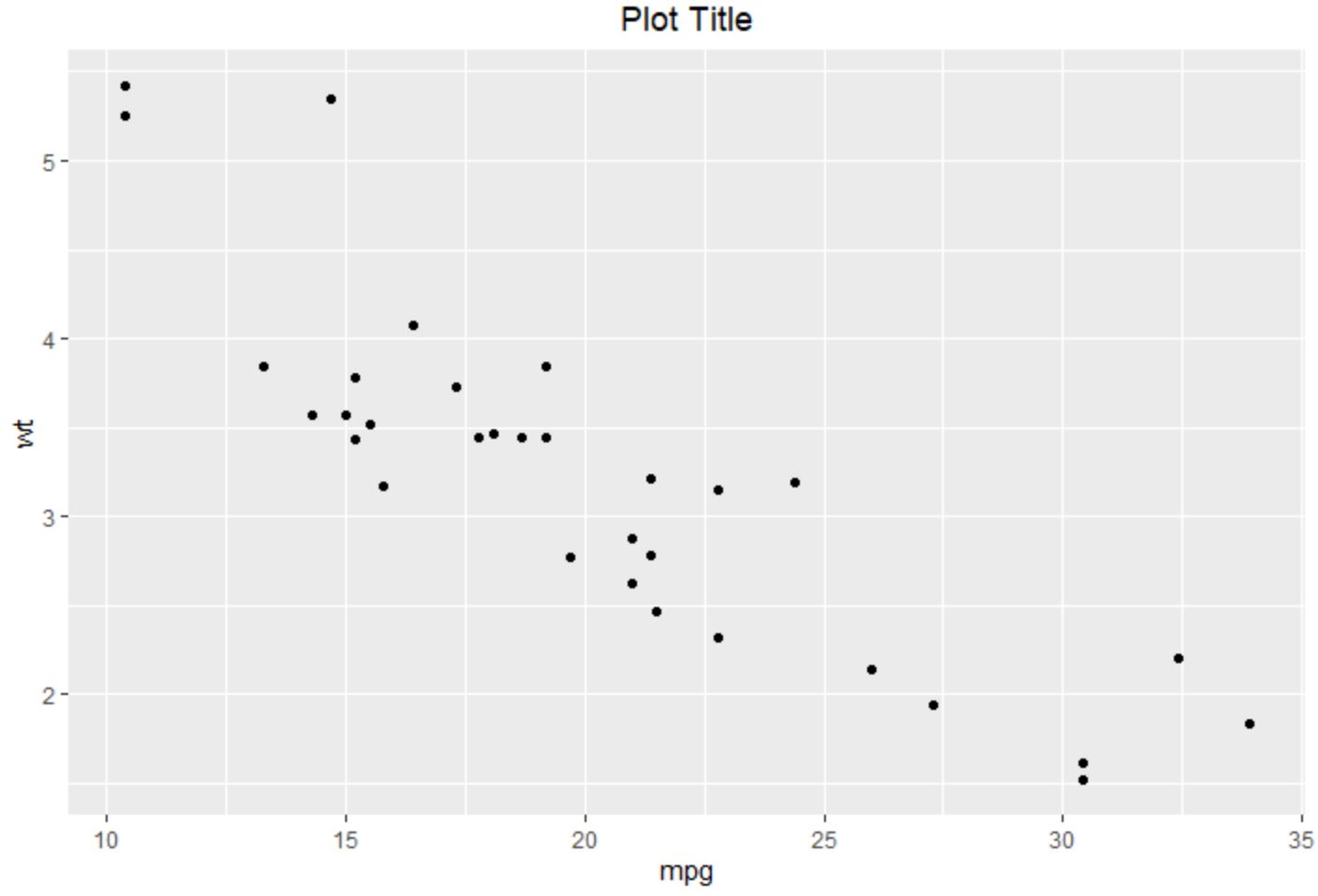
As clearly visible in the resulting plot, the title is now perfectly aligned in the center, greatly enhancing the overall professional appearance and balance of the visualization.
Example 2: Aligning the Title to the Right (Using hjust = 1)
While centering is standard, there are specific design requirements—such as integrating the plot into a dashboard layout or a multi-panel report—where a right-aligned title is preferable. This alignment can help draw attention to the far edge of the graphic or align the title with other right-justified elements on the page.
To achieve right-alignment, we set the `hjust` parameter to `1`. This value represents the maximum horizontal justification, effectively pushing the title flush against the right boundary of the plotting area’s title margin.
The following code demonstrates how to apply this setting. This simple adjustment showcases the quick flexibility provided by the `hjust` parameter in controlling text placement across the horizontal plane of the plot.
library(ggplot2)

#create scatterplot with right-aligned title
ggplot(data=mtcars, aes(x=mpg, y=wt)) +
  geom_point() +
  ggtitle("Plot Title") +
  theme(plot.title = element_text(hjust = 1))
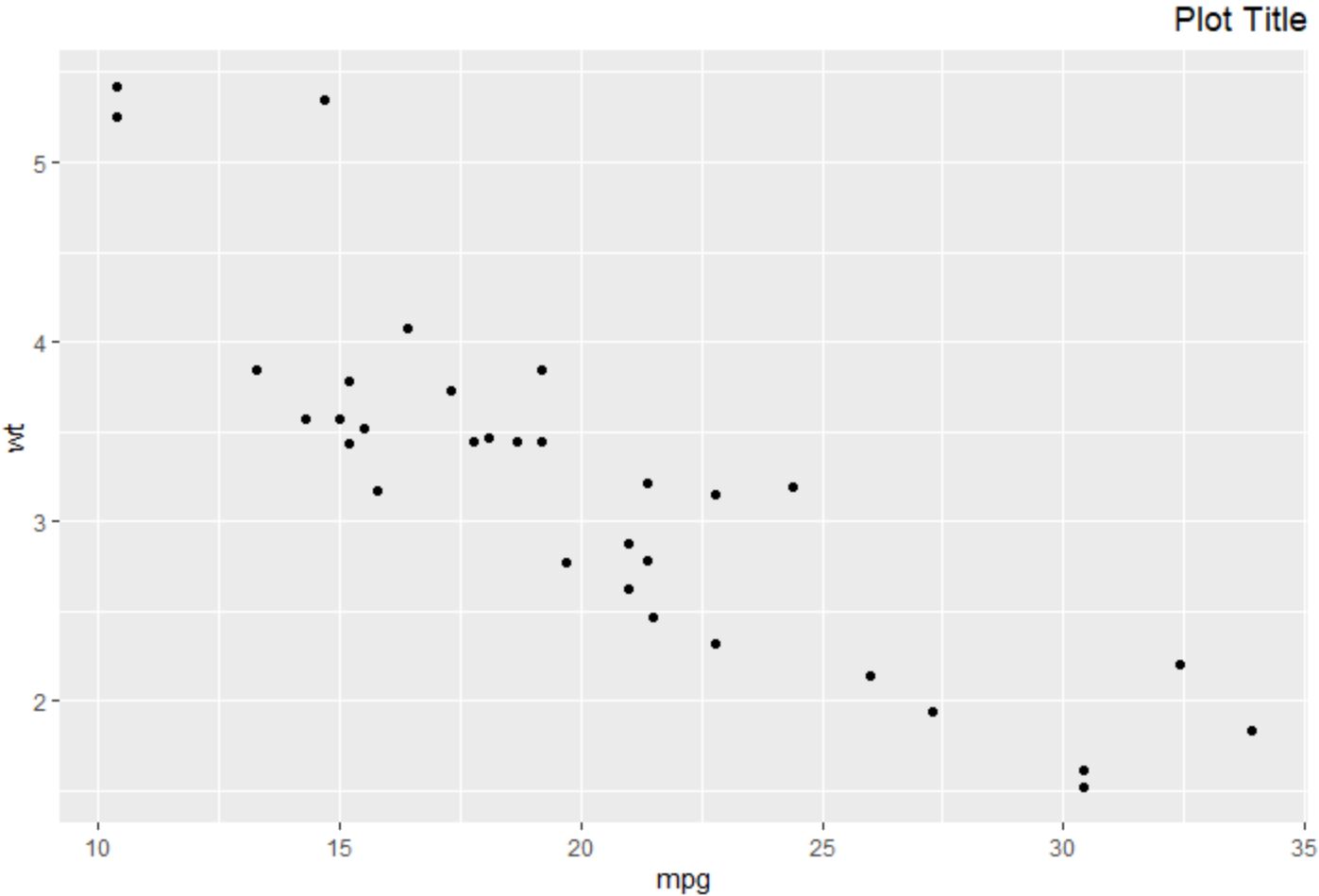
The title is now neatly justified to the right, illustrating how the boundary values (0 and 1) of `hjust` define the limits of horizontal positioning.
Example 3: Advanced Vertical Control Using vjust
The true power of positional control in ggplot2 is realized when manipulating the vertical space using the `vjust` parameter. Unlike `hjust`, which is typically constrained between 0 and 1, `vjust` allows for extreme values, enabling the title to be positioned far outside its default margin area.
To move the title significantly higher above the plot, you supply a value greater than 1 to `vjust`. This is useful when you need to introduce white space above the plot or when placing the title at a precise location relative to surrounding text or headers in a document. The larger the value, the greater the vertical displacement upwards.
In the following demonstration, we set `vjust = 3` to create a large vertical offset. For clarity in this combined example, we also retain `hjust = 1` from the previous example, showing that both horizontal and vertical position can be independently controlled simultaneously.
library(ggplot2)

#create scatterplot with title moved higher up
ggplot(data=mtcars, aes(x=mpg, y=wt)) +
  geom_point() +
  ggtitle("Plot Title") +
  theme(plot.title = element_text(hjust = 1, vjust = 3))
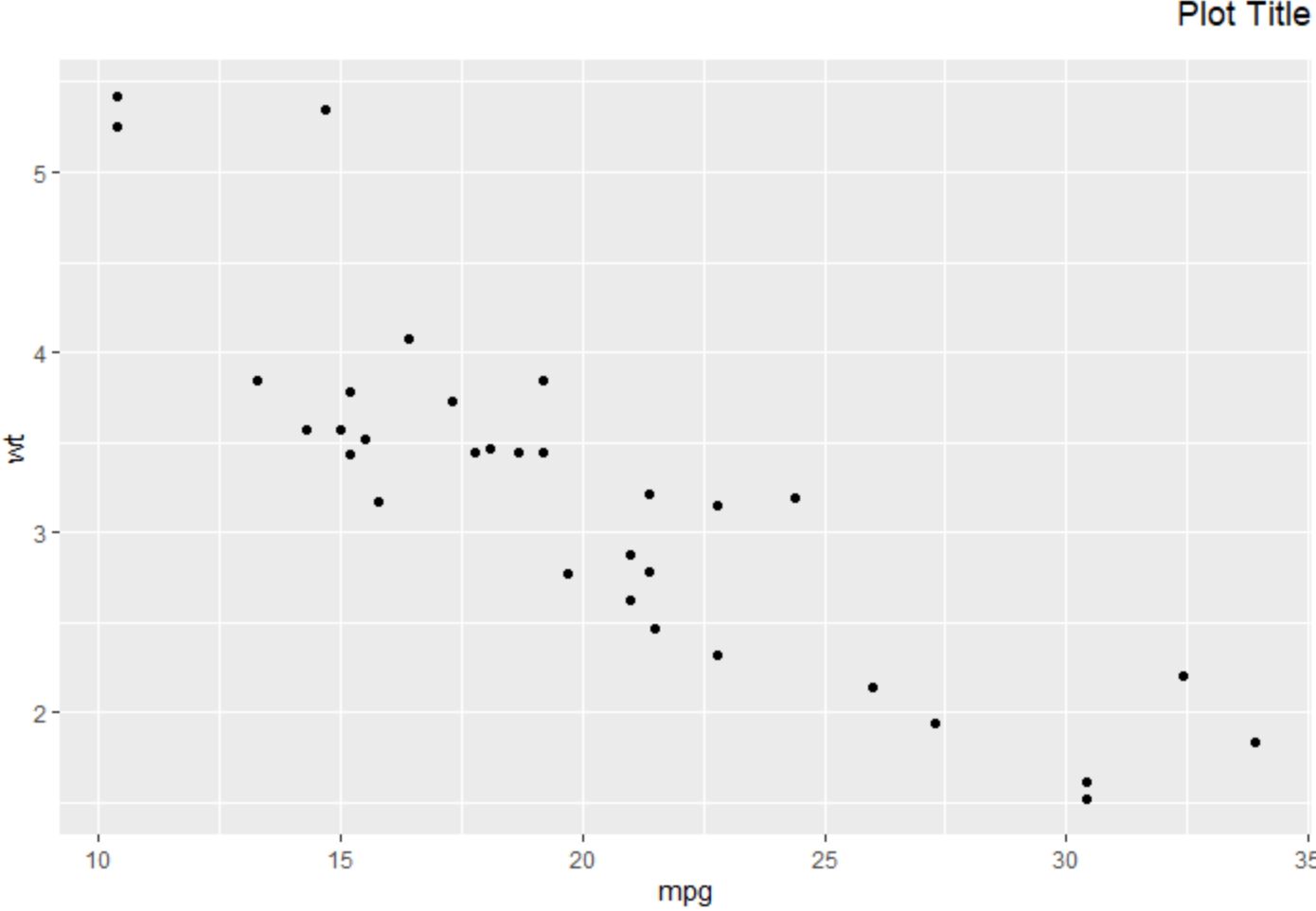
Notice how the title is now positioned much higher, creating a distinct separation from the plot region. This demonstrates the power of positive `vjust` values in managing vertical spacing.
Conversely, to pull the title downwards, potentially causing it to overlap with the plot area, we use negative values for `vjust`. This technique can be employed for highly stylistic effects, such as integrating the title directly over the data visualization or minimizing the margin space above the plot.
Be aware that large negative values may push the title completely out of the visible graphing area, so experimentation is often required. In the example below, we use a significantly negative value to pull the title deep into the plot region.
library(ggplot2)

#create scatterplot with title moved down
ggplot(data=mtcars, aes(x=mpg, y=wt)) +
  geom_point() +
  ggtitle("Plot Title") +
  theme(plot.title = element_text(hjust = 1, vjust = -10))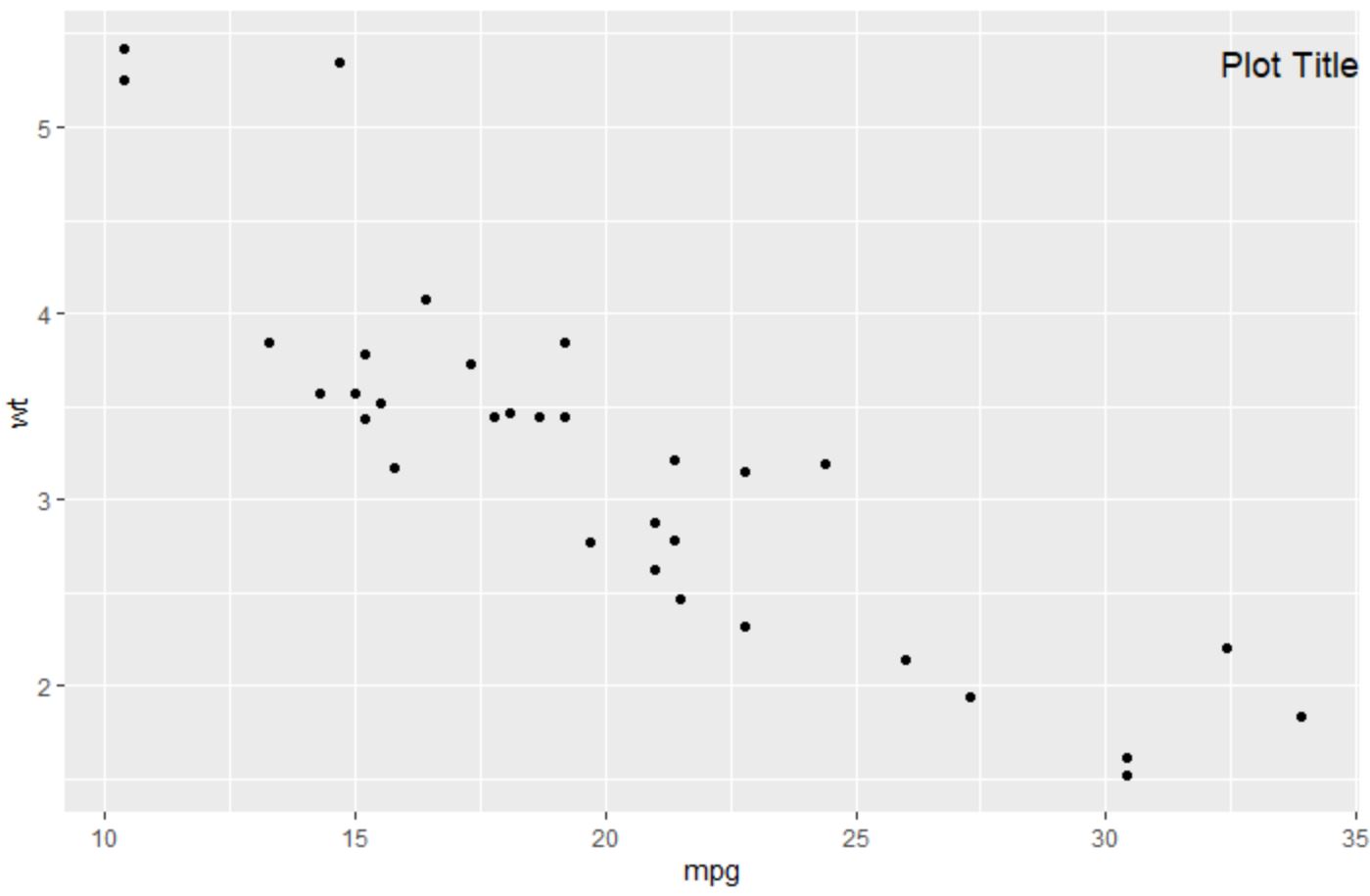
Here, the title is moved significantly downwards, demonstrating how negative `vjust` values can bring the title into the plotting region, offering unique design possibilities for integrating text and data.
Conclusion and Summary of Best Practices
Achieving professional control over your data visualizations in R hinges on mastering fundamental functions like `theme`. The focused adjustment of `plot.title` via `element_text()` and the corresponding `hjust` and `vjust` parameters provide complete positional flexibility, transforming standard plots into customized graphics.
When designing plots, always consider the context: centered titles (`hjust = 0.5`) are generally safe and balanced choices for most reports. However, for specialized layouts or dashboards, experimenting with right-aligned (`hjust = 1`) or vertically offset titles (using values outside 0-1 for `vjust`) can solve specific design challenges. Remember that clear and well-placed titles contribute significantly to how effectively your plots communicate insights to your audience. Consistent and thoughtful application of these positional settings enhances your data storytelling capabilities.
Further Learning and Resources
To further enhance your skills in customizing ggplot2 visualizations, explore the following authoritative resources:
- Official ggplot2 Theme Documentation
- Comprehensive guide to ggplot2
- Learn more about R programming language
Cite this article
Mohammed looti (2025). Learning ggplot2: How to Change Plot Title Position in R. PSYCHOLOGICAL STATISTICS. Retrieved from https://statistics.arabpsychology.com/change-title-position-in-ggplot2-with-examples/
Mohammed looti. "Learning ggplot2: How to Change Plot Title Position in R." PSYCHOLOGICAL STATISTICS, 30 Oct. 2025, https://statistics.arabpsychology.com/change-title-position-in-ggplot2-with-examples/.
Mohammed looti. "Learning ggplot2: How to Change Plot Title Position in R." PSYCHOLOGICAL STATISTICS, 2025. https://statistics.arabpsychology.com/change-title-position-in-ggplot2-with-examples/.
Mohammed looti (2025) 'Learning ggplot2: How to Change Plot Title Position in R', PSYCHOLOGICAL STATISTICS. Available at: https://statistics.arabpsychology.com/change-title-position-in-ggplot2-with-examples/.
[1] Mohammed looti, "Learning ggplot2: How to Change Plot Title Position in R," PSYCHOLOGICAL STATISTICS, vol. X, no. Y, ص Z-Z, October, 2025.
Mohammed looti. Learning ggplot2: How to Change Plot Title Position in R. PSYCHOLOGICAL STATISTICS. 2025;vol(issue):pages.