Table of Contents
Introduction: The Power of the 3D Clustered Column Chart
The 3D clustered column chart stands as an immensely powerful technique within modern data visualization, specifically engineered to facilitate the direct comparison of multiple sets of numeric variables that are organized according to a shared categorical variable. Unlike simpler bar charts designed for single data streams, the clustered variation excels at presenting distinct categories side-by-side, creating an immediate visual juxtaposition. This parallel display provides rapid, intuitive insights into comparative performance, highlights disparities between groups, and unveils underlying trends across diverse segments of the data. While the addition of a three-dimensional effect can significantly enhance aesthetic appeal and visual impact, skilled designers must exercise meticulous caution to ensure that the perception of depth does not inadvertently compromise the fundamental clarity or accurate interpretation of the represented data points.
This visualization format is ideally suited for complex scenarios that demand precise comparisons of performance metrics, quantities, or financial indicators across distinct operational segments. Common and highly effective use cases include analyzing product sales performance across varying geographical regions, comparing student assessment scores among different academic subjects, or systematically tracking departmental budgetary allocations over defined periods of time. The chart’s inherently intuitive, structured layout significantly facilitates the rapid comprehension of complex quantitative patterns, cementing the 3D clustered column chart as an indispensable element in high-level analytical reports, executive summaries, and formal professional presentations. The structured visual separation of data into distinct clusters dramatically enhances the ease of direct comparison, making it straightforward to highlight which specific categories are performing optimally or lagging under a given set of conditions.
This comprehensive tutorial will meticulously guide you through the step-by-step process required to construct and refine a sophisticated 3D clustered column chart using the robust capabilities of Microsoft Excel. We will work with a hypothetical dataset designed to visualize the sales figures for two distinct products across several operational regions for a fictitious company. By the successful conclusion of this instructional guide, you will possess the requisite technical proficiency to transform raw, tabular data into an insightful, visually compelling, and highly professional graphical representation, mirroring the exemplary standard demonstrated in the final image provided below:
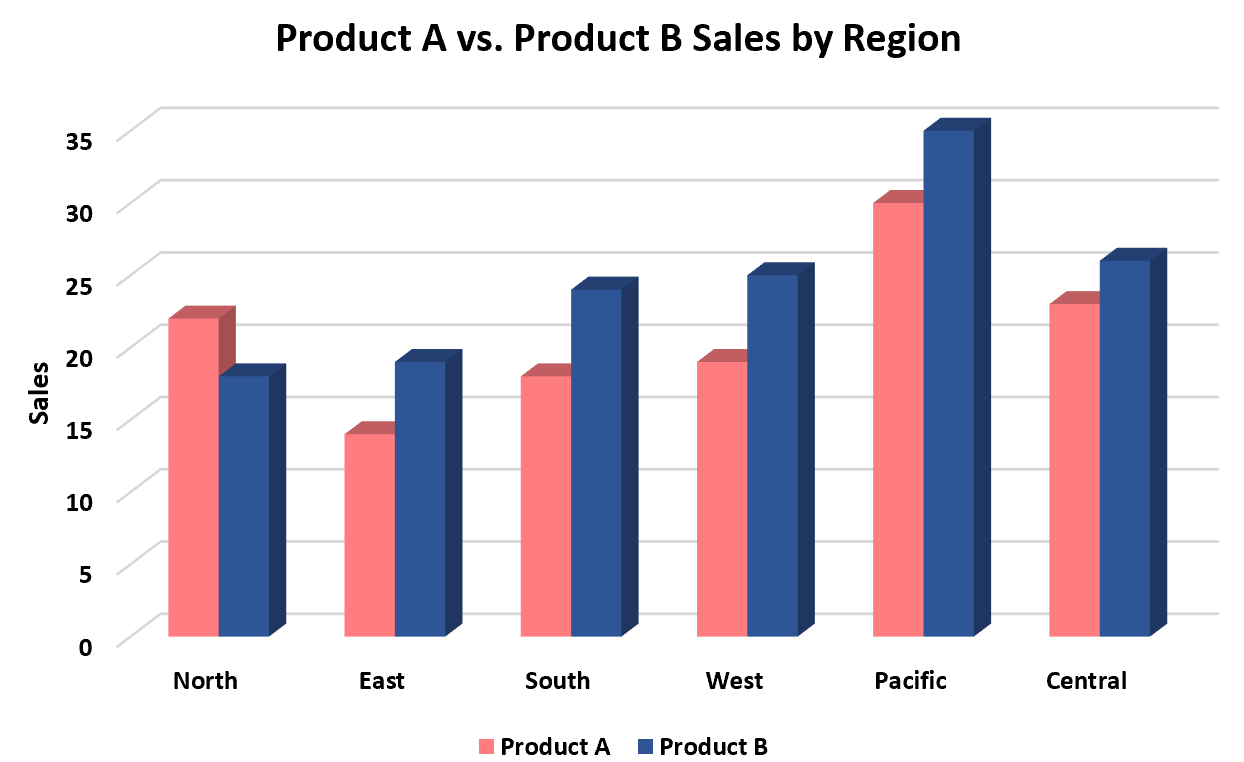
Prepare to master the creation of this essential chart type in Excel, a crucial skill that will significantly enhance your overall ability to effectively convey complex quantitative information to any audience.</
Structuring Your Data for Seamless Excel Integration
The eventual efficacy, analytical accuracy, and overall reliability of any statistical chart are fundamentally dependent upon the underlying data’s structure and organization. Consequently, before we even attempt to access the powerful charting functionalities offered by Microsoft Excel, it is paramount that we organize our raw information in a logical, clean, and easily interpretable tabular format. For the specific visualization requirements of this tutorial, we require a precise dataset that systematically records the total sales of two distinct entities—Product A and Product B—across a specified range of operational geographical regions. This highly organized approach guarantees that Excel’s charting engine can accurately interpret the established relationships and dependencies that exist within your numerical information.
To begin the process, open a new spreadsheet within Excel and accurately input the required dataset exactly as illustrated in the visual example below. It is critical to pay careful attention to the specific formatting of the column headers and the sequential arrangement of the data points, as this specific layout directly governs how the resulting chart will be automatically generated by the program. Following established charting conventions, the first column must contain your categorical variable (in this case, the Geographical Regions), while all subsequent columns must strictly house the critical numeric values corresponding to each individual data series intended for comparison (specifically, the Sales Revenue figures for Product A and Product B). This precise structure ensures the correct assignment of axes during the charting process.
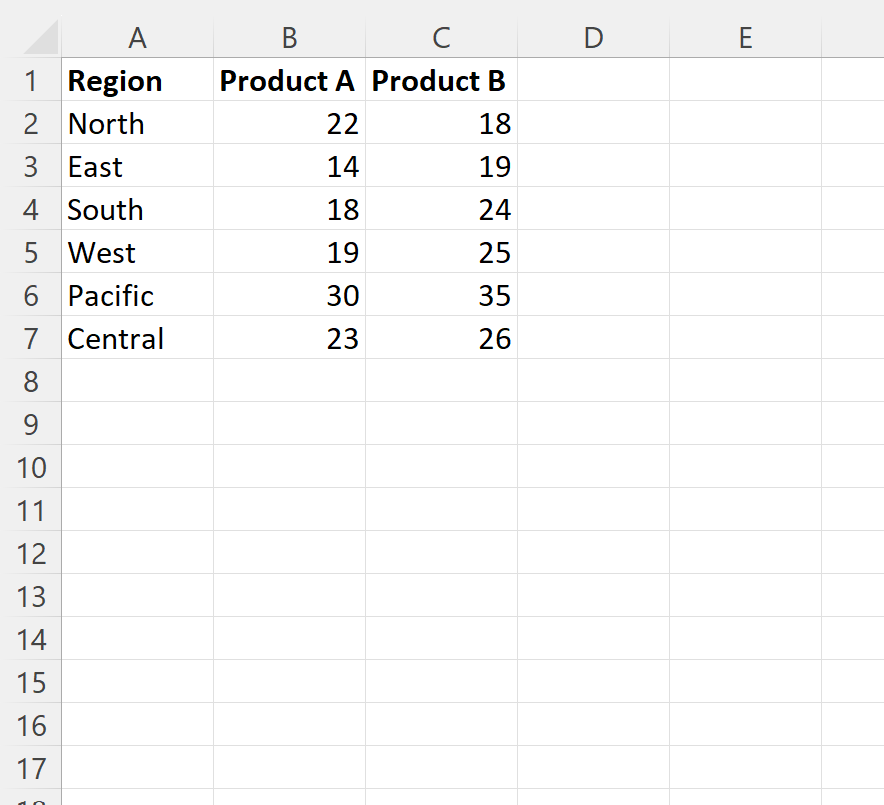
It is absolutely vital to prioritize ensuring that your data table is completely free from entry errors, inconsistencies, or any missing values, as these common flaws can dramatically skew the accuracy and consequently undermine the reliable interpretation of your final data visualization. Once the initial data entry is completed, we recommend conducting a thorough review, confirming the correctness of all numerical entries and verifying the associated categorical labels. This vital preliminary phase is crucial for ensuring a seamless, error-free charting process and for deriving credible, actionable insights from your completed 3D clustered column chart. A well-structured dataset is the foundation of effective visual analysis.
Chart Generation Phase: Selecting Data and Inserting the 3D View
With our raw data meticulously prepared and correctly organized within the Excel worksheet, the next essential procedure involves precisely communicating to the software which specific range of cells contains the information slated for visualization. Accurate data selection is absolutely critical; failure to select the correct range will inevitably result in a chart that is either structurally incomplete, visually misleading, or fundamentally flawed in its representation. This step effectively establishes the complete scope of your chart, clearly defining both the categorical groupings that will form the X-axis and the quantitative values that will be accurately plotted along the Y-axis.
For the specific comparative example demonstrated in this guide, our structured dataset includes the geographical regions positioned in column A, the sales figures for Product A in column B, and the sales figures for Product B in column C. To encompass all necessary chart components, including the descriptive header row, we must select the entire dataset range, which is precisely defined as A1:C7. This comprehensive selection ensures that the region names (which define the categorical variable axis) and the sales data for both Product A and Product B (which form the two distinct data series) are correctly captured and processed for the subsequent chart generation phase. Once the range A1:C7 is highlighted, direct your attention to the top command bar of the Excel interface, commonly known as the ribbon, which logically organizes the program’s vast features.
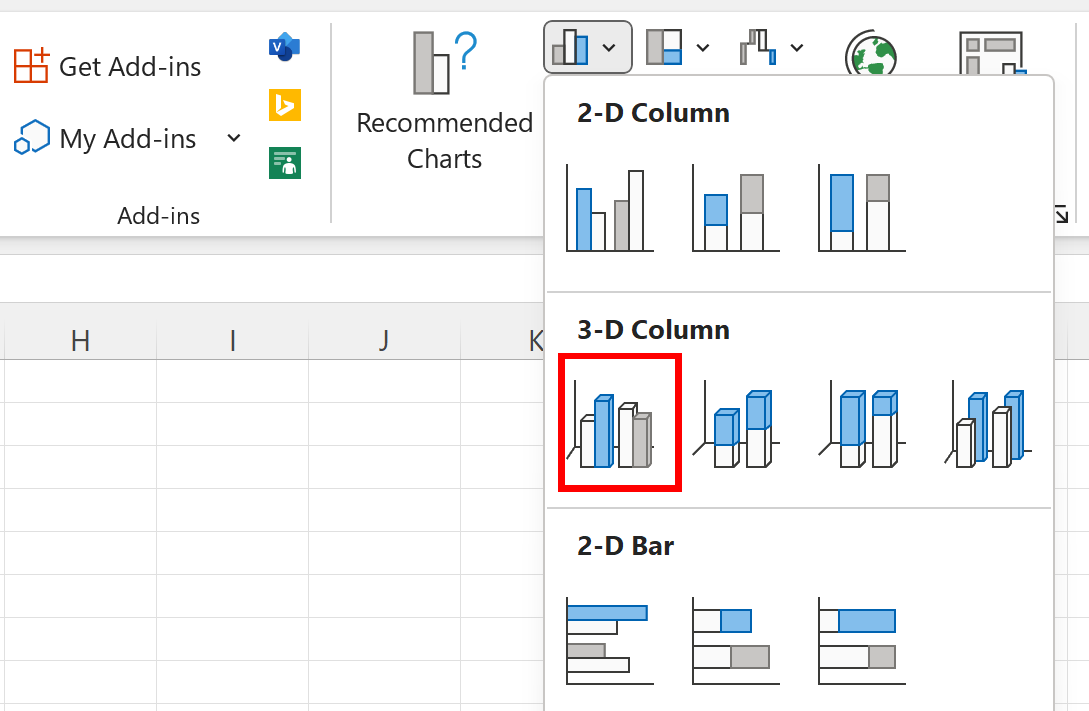
The pathway to generating our desired chart begins by clicking on the Insert tab, which functions as the primary repository for adding diverse visual and structural elements to your spreadsheet. Upon activation of the Insert tab, carefully review the various tool groups displayed on the ribbon. Identify and locate the Charts group, which is specifically dedicated to all forms of graphical data representation. Within this comprehensive group, you will find a selection of chart icons. To generate our specific visualization, click on the icon representing the “Column or Bar Chart” and, from the resulting submenu options that appear, select the 3-D Clustered Column icon. This critical action commands Excel to instantly interpret the selected data range and immediately render it as a three-dimensional clustered column chart structure, placing the preliminary graph directly onto your worksheet.
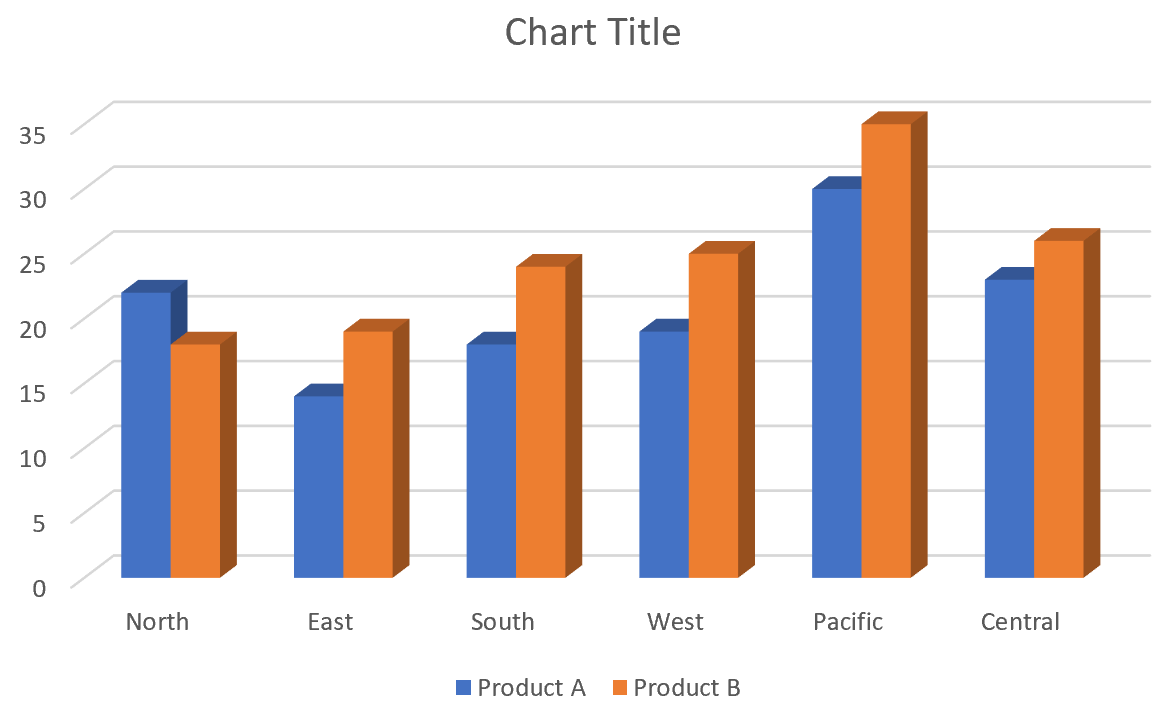
This initial output provides an immediate, functional visual summary where the sales for each product are represented by a distinct cluster of 3D bars positioned across the various geographical regions. While this default chart successfully maps the data, it typically requires subsequent refinement and meticulous customization steps to fully optimize its visual clarity, maximize its aesthetic appeal, and ensure optimal communication of the underlying data trends, transforming it from a functional graph into an impactful data visualization tool.
Mastering Customization: Fine-Tuning Depth and Spacing
Although the automatic chart generation feature in Microsoft Excel provides a robust structural foundation, achieving truly impactful visual analysis often necessitates the customization and meticulous refinement of the chart’s appearance. This is essential for enhancing readability and maximizing its communicative power. Customization is the phase where the visual elements are aligned with specific presentation goals, ensuring that the intended message is conveyed clearly and without any ambiguity. A primary and critical aspect of customizing 3D column charts involves carefully adjusting the spacing and overall dimensionality of the bars, factors that profoundly influence the chart’s visual balance and the viewer’s immediate perception of three-dimensional depth.
To initiate the process of fine-tuning these structural and visual elements, the user must access the dedicated Format Data Series panel. This panel serves as the central control interface for modifying the various properties associated with the plotted data series within the chart environment. The most efficient method to quickly open this essential panel is to simply double-click on any individual bar located within the generated graph. This context-sensitive action immediately summons the relevant formatting options, allowing for precise manipulation of the chart’s visual attributes without the need to navigate through complex nested menus or ribbon options. Within the resulting panel, you will encounter various configuration options logically segmented into different categories.
For the critical aesthetic adjustments required in our 3D clustered column chart, focus specifically on the “Series Options” section. Here, you can precisely manipulate two exceptionally important parameters: Gap Depth and Gap Width. These settings control the visual separation between the distinct data series (depth) and the proportional thickness of the individual bars (width). The Gap Depth parameter specifically governs the spacing that separates the different data clusters (e.g., the cluster representing Product A from the cluster representing Product B) as they recede along the chart’s depth axis. Conversely, the Gap Width parameter dictates the spacing situated between individual bars located within a single cluster, while also controlling the overall thickness of those bars. Mastering these parameters is crucial for constructing an aesthetically pleasing, balanced, and easily interpretable visualization.
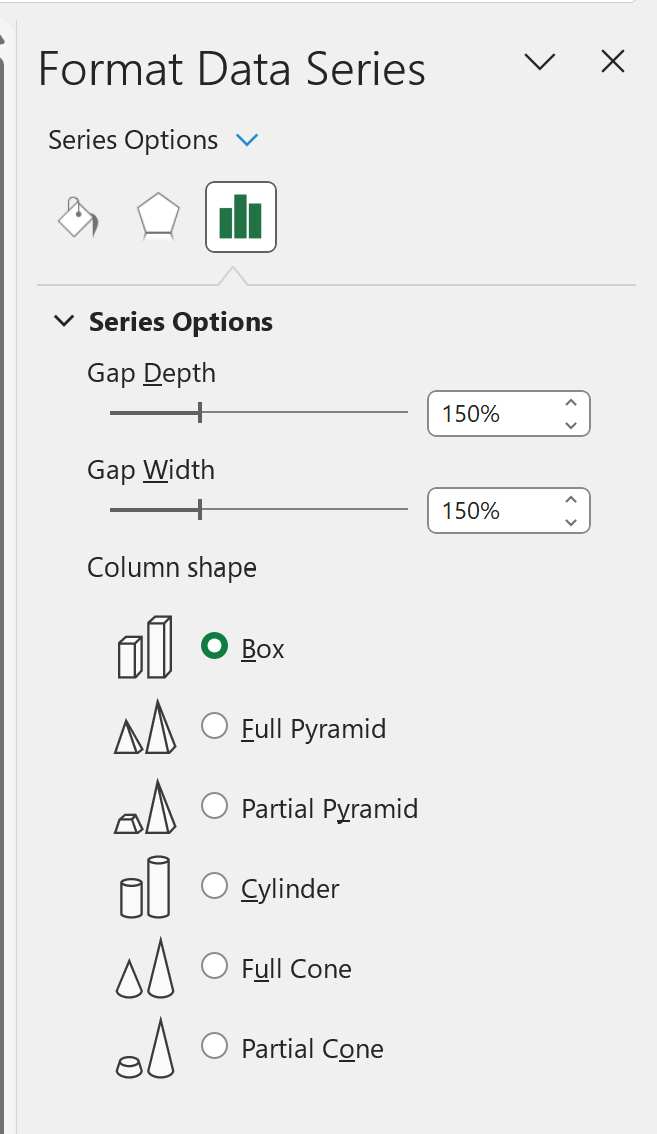
A higher numerical value assigned to Gap Depth introduces greater visual separation, effectively emphasizing the distinctiveness of individual clusters, while reducing this value draws them closer together. Similarly, a high value for Gap Width results in bars that are visually wider and more commanding, concurrently increasing the unoccupied space between adjacent bars. Achieving the optimal equilibrium between these two critical parameters is essential for maximizing readability and professional visual appeal, ensuring that the chart avoids appearing either excessively sparse or unduly dense. While we proceed with default settings for the remainder of this guide, strategic experimentation with Gap Depth and Gap Width using your own unique datasets is strongly encouraged to achieve the perfect visual effect for your specific analytical goals.
Finalizing the Visualization: Titles, Labels, and Aesthetic Polish
Moving beyond the structural adjustments of bar spacing and depth, a truly professional and effective chart must unequivocally communicate its message through precise labeling and judicious aesthetic choices. Incorporating a highly descriptive title, accurately labeling the chart axes, and strategically utilizing color are crucial, final steps in elevating a basic graph into a compelling and actionable data visualization. These finalized elements serve to guide the viewer, ensuring they instantly comprehend the chart’s core subject matter and the key insights that are intended to be derived from the visual data representation, eliminating potential ambiguity in interpretation.
To decisively enhance the overall clarity of our 3D clustered column chart, we must implement several key customizations using the Chart Elements menu. First and foremost, apply a concise yet thoroughly informative chart title that accurately reflects the data’s core subject matter—a title such as “Sales Performance by Region for Products A and B” immediately establishes the necessary context and scope. Secondly, it is mandatory to affix a clear and precise label to the y-axis. As the y-axis represents the numerical values in our example, a label like “Sales Revenue (in Thousands USD)” or simply “Quantity Sold” is critical for conveying the unit and magnitude of the quantified data, allowing stakeholders to correctly assess the scale of the performance differences being shown.
Furthermore, while Excel provides default color assignments, the platform grants extensive flexibility to modify the color palette of the bars. This customization feature should be utilized intentionally to align the chart with corporate branding standards, provide clearer visual differentiation between distinct product lines, or simply optimize visual contrast for easier viewing, especially in printed materials or large presentations. Consistent and intentional use of color significantly contributes to the chart’s professional polish and vastly assists in the rapid identification of each plotted data series. These combined refinements culminate in a finalized chart that is not only visually superior but also maximally effective at conveying complex comparative information instantly, demonstrating how Product A and Product B perform across the varied geographical areas plotted on the x-axis.
Conclusion: Strategic Application and Next Steps
Throughout the course of this detailed tutorial, we have systematically navigated the complete, methodological process required for creating and meticulously refining a 3D clustered column chart within the Microsoft Excel environment. This journey successfully transformed raw, unstructured sales data into a dynamic, highly informative visual representation. We established the foundation by meticulously structuring our initial dataset, a crucial prerequisite step that ensures the fundamental analytical integrity and accuracy of the subsequent visualization. Following data preparation, we expertly navigated Excel’s interface to select the precise data range (A1:C7) and successfully inserted the initial 3D clustered column chart structure, creating the basic visual framework.
Our exploration then continued with a detailed focus on advanced chart customization, where we gained mastery over manipulating critical aesthetic parameters, including Gap Depth and Gap Width. These specific adjustments are indispensable for optimizing the chart’s visual balance and ensuring superior readability, allowing for clear and immediate differentiation between individual bars and entire data series clusters, ultimately controlling the perceived three-dimensional space. Finally, we underscored the paramount importance of enhancing chart communication through the addition of meaningful titles, highly precise axis labels detailing the units of measure, and deliberate color selections—all contributing factors essential for producing a professional and universally comprehensible data visualization.
The competency to efficiently create, customize, and interpret such comparative charts represents an invaluable skill set in the increasingly demanding, data-driven professional landscape of today. 3D clustered column charts are uniquely effective tools for simultaneously comparing multiple categorical variable values across different groups, making them perfectly suited for critical applications such as comparative sales analysis, cross-segment performance tracking, and various sophisticated business intelligence requirements. By diligently following the methodological steps outlined in this detailed guide, you are now fully equipped to effectively communicate complex data patterns, thereby enabling more informed decision-making and extracting clearer, actionable insights from your proprietary datasets. We encourage you to continue expanding your charting repertoire to include line charts for trend analysis and scatter plots for correlation studies, ensuring you always select the most appropriate visual tool for your analytical objective.
Cite this article
Mohammed looti (2025). Learn to Visualize Data: Creating 3D Clustered Column Charts in Excel. PSYCHOLOGICAL STATISTICS. Retrieved from https://statistics.arabpsychology.com/create-a-3d-clustered-column-chart-in-excel/
Mohammed looti. "Learn to Visualize Data: Creating 3D Clustered Column Charts in Excel." PSYCHOLOGICAL STATISTICS, 14 Nov. 2025, https://statistics.arabpsychology.com/create-a-3d-clustered-column-chart-in-excel/.
Mohammed looti. "Learn to Visualize Data: Creating 3D Clustered Column Charts in Excel." PSYCHOLOGICAL STATISTICS, 2025. https://statistics.arabpsychology.com/create-a-3d-clustered-column-chart-in-excel/.
Mohammed looti (2025) 'Learn to Visualize Data: Creating 3D Clustered Column Charts in Excel', PSYCHOLOGICAL STATISTICS. Available at: https://statistics.arabpsychology.com/create-a-3d-clustered-column-chart-in-excel/.
[1] Mohammed looti, "Learn to Visualize Data: Creating 3D Clustered Column Charts in Excel," PSYCHOLOGICAL STATISTICS, vol. X, no. Y, ص Z-Z, November, 2025.
Mohammed looti. Learn to Visualize Data: Creating 3D Clustered Column Charts in Excel. PSYCHOLOGICAL STATISTICS. 2025;vol(issue):pages.