Table of Contents
A correlation matrix is a fundamental tool in statistical analysis, presenting a concise summary of the linear relationships between multiple variables within a dataset. Structured as a square table, this matrix displays the Pearson correlation coefficients for every possible pair of variables included in the analysis. Understanding how to generate and interpret this matrix is essential for researchers utilizing statistical software like SPSS Statistics.
Understanding the Pearson Correlation Coefficient
Before diving into the creation process, it is important to clearly define the metric used within the matrix: the Pearson correlation coefficient (often denoted as r). This coefficient quantifies the strength and direction of the linear association between two continuous variables. It is a standardized measure, meaning its value always falls strictly between -1 and 1.
The coefficient’s value provides immediate insight into the nature of the relationship, allowing analysts to quickly gauge whether variables move together, oppose each other, or show no discernible linear pattern. The magnitude of the number, regardless of its sign, indicates the strength of the relationship; values closer to 1 or -1 represent stronger associations.
Specifically, the interpretation of the Pearson correlation coefficient is governed by three primary boundary points:
- -1 indicates a perfectly negative linear correlation between two variables. As one variable increases, the other decreases proportionally.
- 0 indicates no linear correlation between two variables. Changes in one variable are not linearly predictive of changes in the other.
- 1 indicates a perfectly positive linear correlation between two variables. Both variables increase or decrease together proportionally.
A key principle to remember is that the further the correlation coefficient is from zero (in either the positive or negative direction), the stronger the linear relationship is deemed to be. Conversely, coefficients approaching zero suggest weak or negligible linear association. This tutorial will walk you through the precise steps required to generate and accurately interpret this powerful statistical matrix using SPSS.
Example: Setting Up the Data and Initiating Bivariate Analysis in SPSS
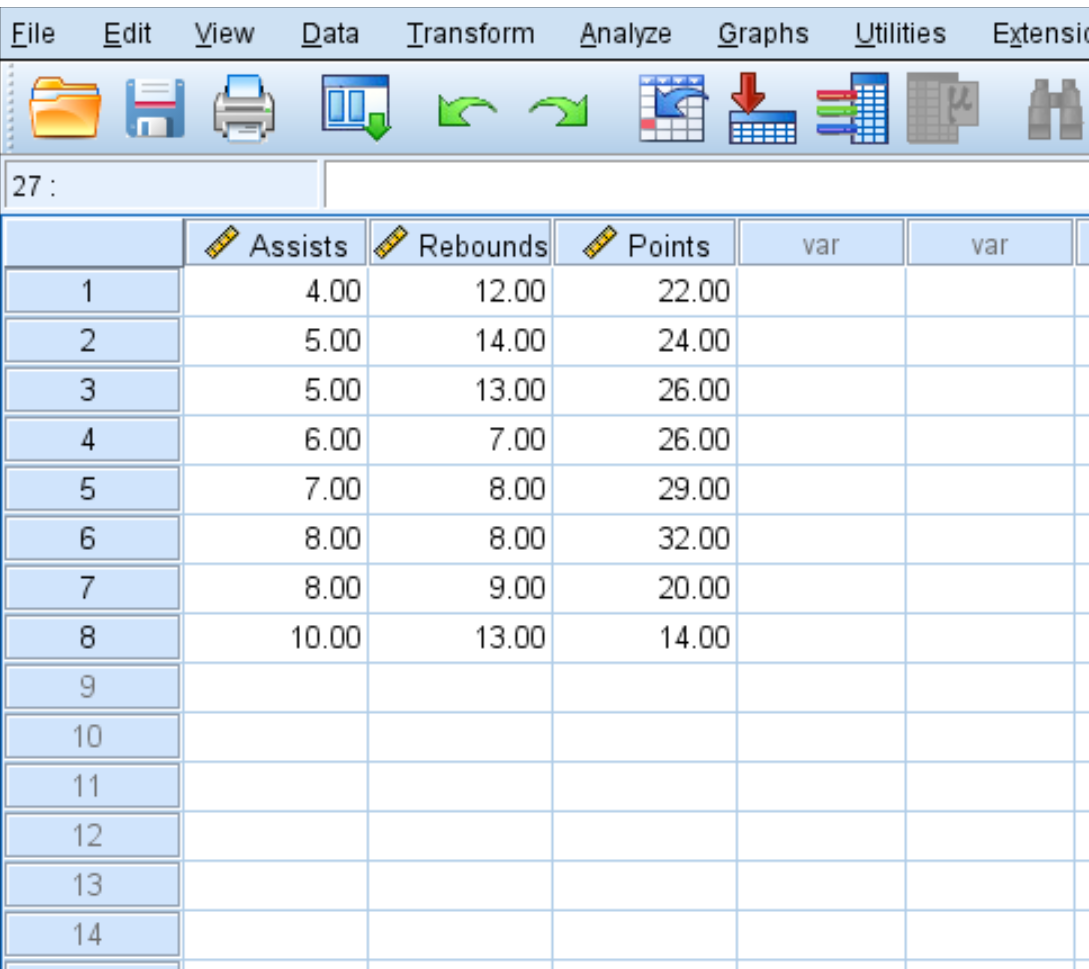
To illustrate the process of creating a correlation matrix, we will use a sample dataset focusing on basketball player statistics. This dataset includes measurements for eight players across three key performance indicators: average Assists, Rebounds, and Points. Our objective is to determine how these variables are linearly related to one another using SPSS.
Ensure your data is properly loaded into the SPSS Data View, with each variable defined in its respective column, as shown in the data view below. The variables must be continuous or scale-level data for the Pearson correlation to be appropriate.
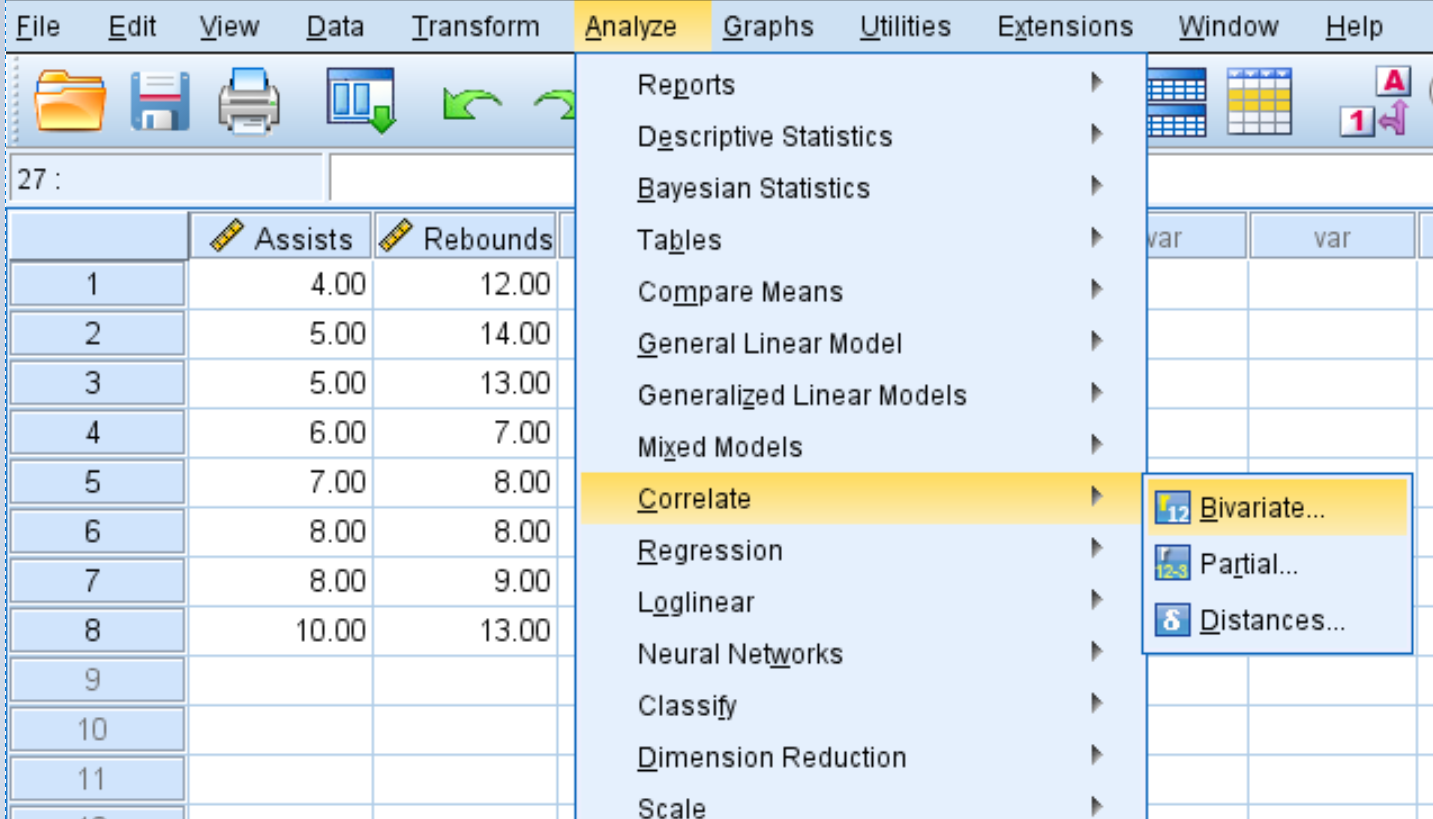
The first procedural step in generating the matrix is accessing the appropriate statistical function within the SPSS menu system. We are looking for the Bivariate correlation tool, which is designed specifically for calculating pairwise correlations between chosen variables.
Step 1: Select Bivariate Correlation
To initiate the analysis, navigate through the main menu bar of SPSS:
- Click the Analyze tab located at the top of the application window.
- Hover over the Correlate option to expand the sub-menu.
- Click Bivariate to open the correlation dialogue box, which allows you to specify the parameters for the analysis.
Step 2: Configure and Create the Correlation Matrix
Once the Bivariate Correlations dialogue box opens, you must select the variables that will form the rows and columns of your matrix. Initially, all available variables in the dataset are listed in the box on the left, ready for selection.
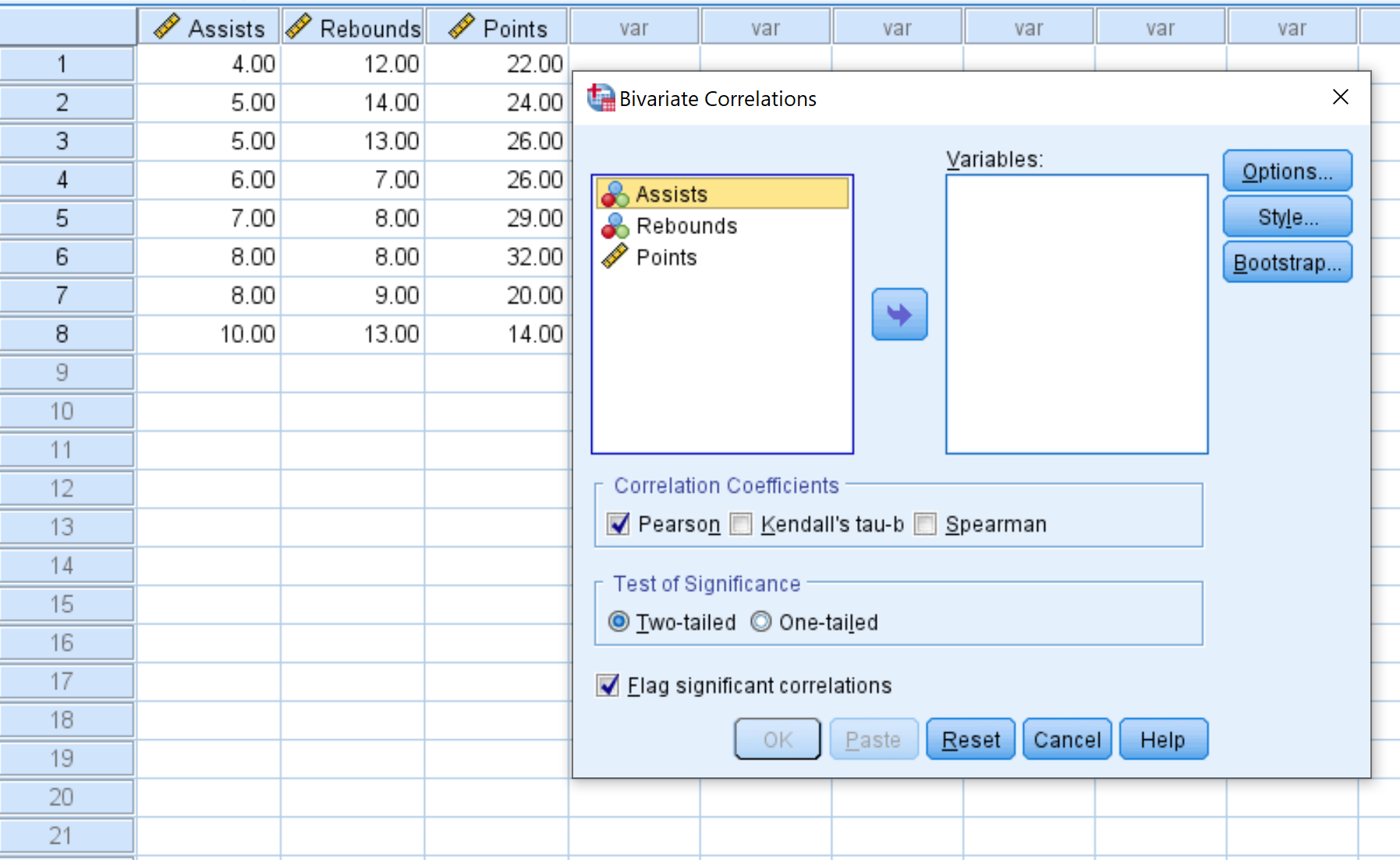
The configuration process requires careful attention to the desired coefficient type and significance testing method. Follow these steps to complete the setup:
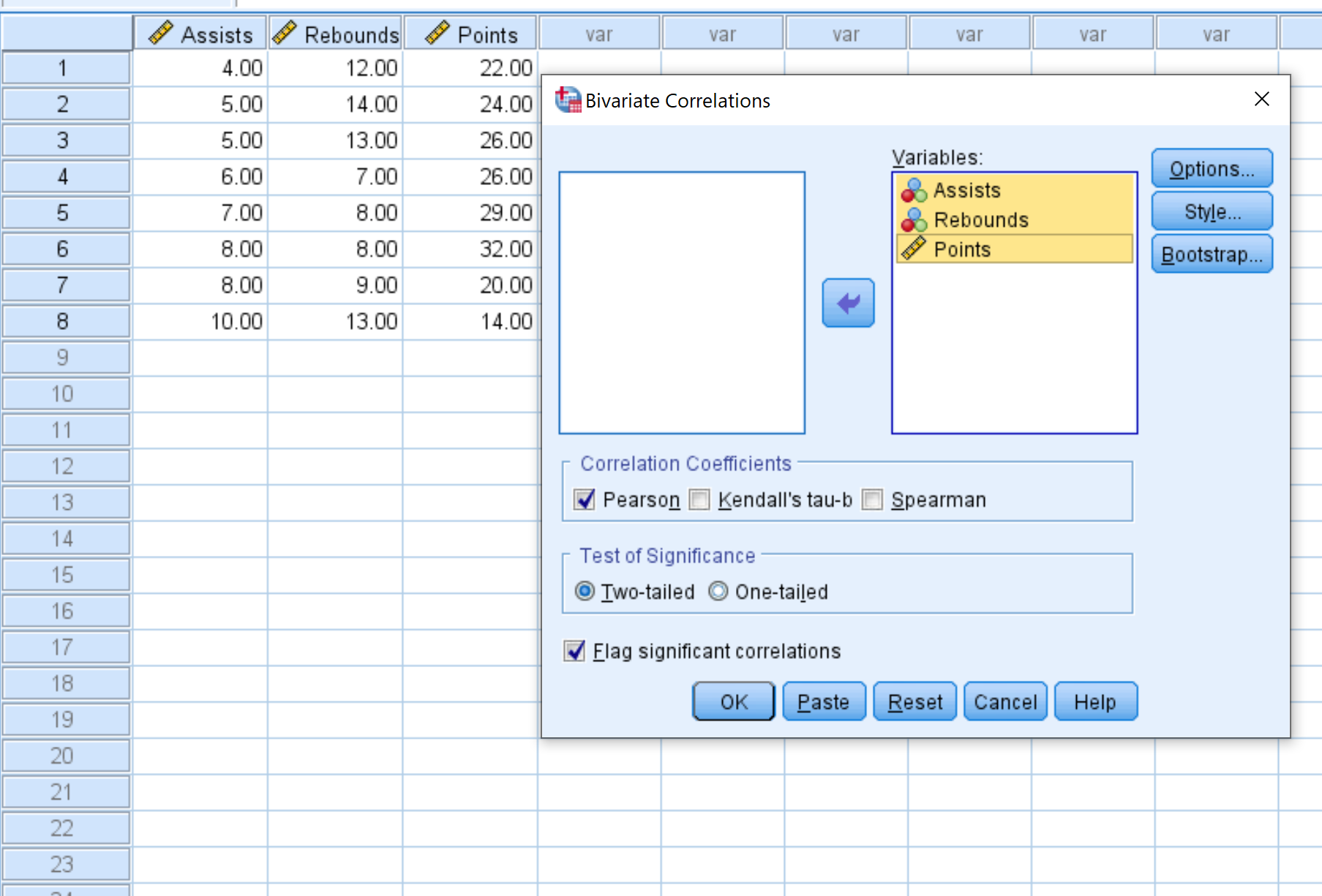
- Transfer Variables: Select each variable intended for inclusion in the correlation matrix (Assists, Rebounds, and Points). Click the arrow button to move them into the Variables box on the right. In this illustrative example, we utilize all three variables.
- Select Correlation Coefficient: Under the Correlation Coefficients section, you must specify the statistical measure. Options typically include Pearson, Kendall’s tau, or Spearman. For this analysis involving average player statistics, we will maintain the default selection of Pearson.
- Choose Test of Significance: The Test of Significance area determines whether a one-tailed test or a two-tailed test will be used to assess the statistical significance of the correlation. We will leave it as the standard Two-tailed option.
- Flag Significant Correlations: Check the box labeled Flag significant correlations. This feature instructs SPSS to automatically mark coefficients that achieve statistical significance (typically at the p < 0.05 level) with an asterisk, providing immediate visual feedback.
- Lastly, click OK.
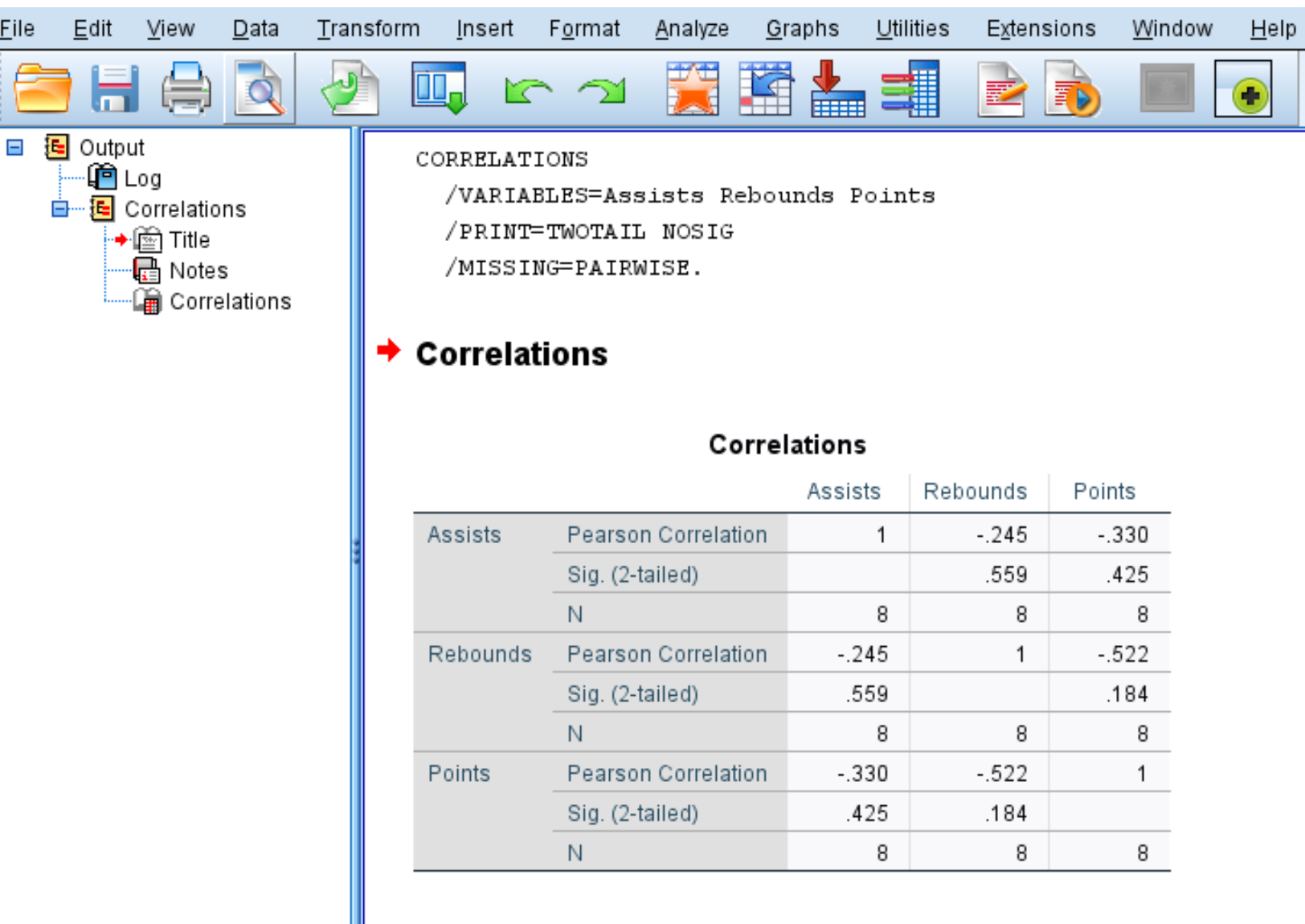
Once you click OK, the following comprehensive correlation matrix will appear in the SPSS Output Viewer:
Step 3: Systematic Interpretation of the Correlation Matrix
The resulting output matrix is highly structured and provides detailed information for every pairwise variable comparison. Each cell in the matrix contains three key metrics that are crucial for a thorough statistical interpretation.
To correctly read the matrix, focus on the intersection of the row variable and the column variable. For example, the relationship between ‘Assists’ and ‘Rebounds’ can be found where the ‘Assists’ row intersects with the ‘Rebounds’ column.
The three metrics displayed for each pairing are defined as follows:
- Pearson Correlation: A measure of the linear association between two variables, ranging from -1 to 1. This value indicates the direction and strength of the relationship.
- Sig. (2-tailed): The two-tailed p-value associated with the correlation coefficient. This statistic is used to determine if the association between the two variables is statistically significant (e.g., if the p-value is less than 0.05).
- N: The number of paired observations (sample size) used to calculate the Pearson correlation coefficient for that specific cell.
For example, here is how to interpret the output for the variable pairing Assists and Rebounds:
- The Pearson Correlation coefficient between Assists and Rebounds is -.245. Since this number is negative and relatively close to zero, it means these two variables have a weak, negative association.
- The p-value (Sig. (2-tailed)) associated with this correlation is .559. Because this value is not less than the standard threshold of 0.05, we conclude that the two variables do not have a statistically significant association.
- The sample size (N) used to calculate the Pearson correlation coefficient was 8 (corresponding to the eight players in the dataset).
Step 4: Visualize the Correlation Matrix using a Scatterplot Matrix
While the numerical correlation matrix provides precise statistical metrics, visualization is essential for confirming linearity assumptions and detecting outliers. A scatterplot matrix is an excellent graphical tool that simultaneously displays the pairwise linear relationship between every combination of variables analyzed.
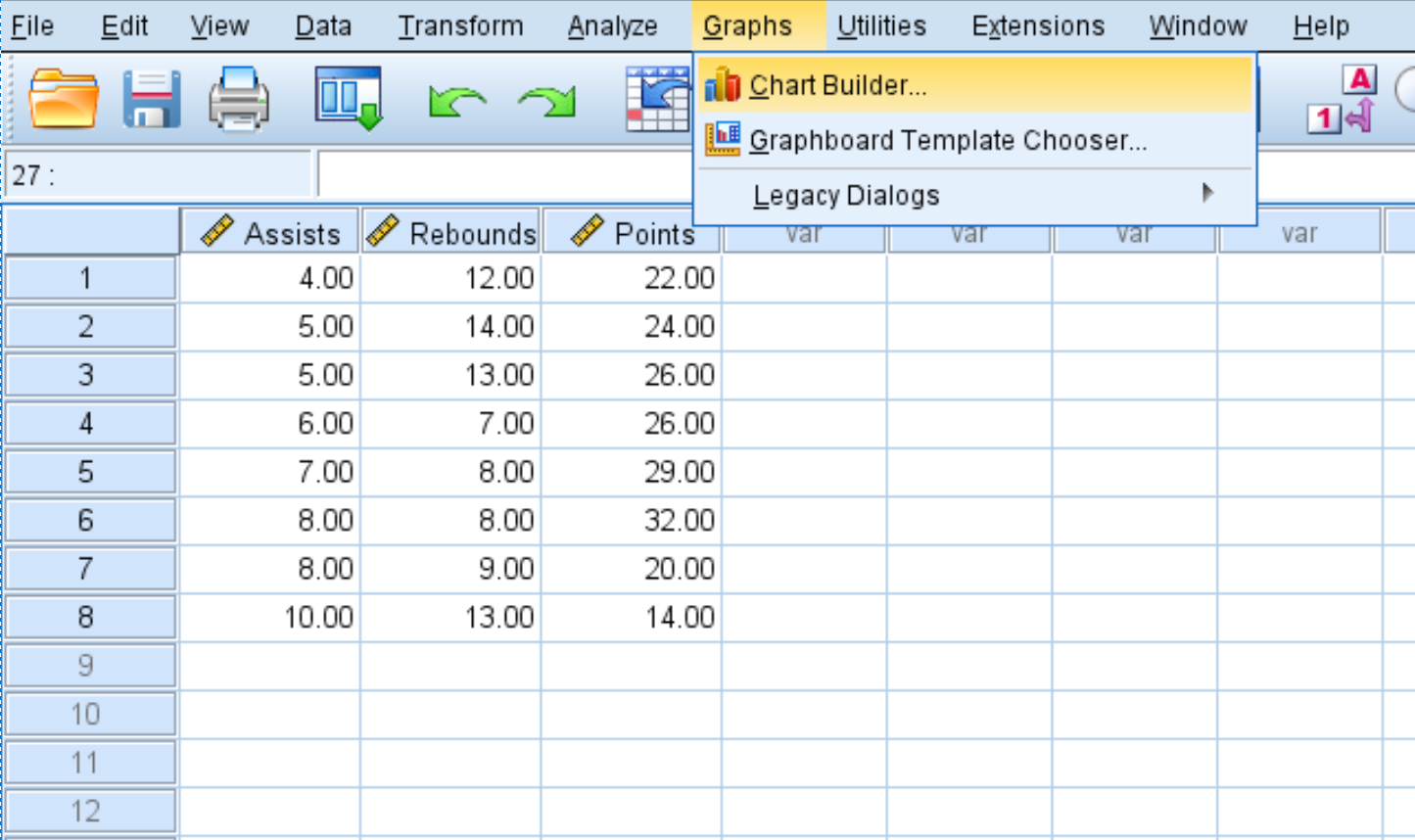
To generate this visualization in SPSS, follow the specific commands tailored for creating composite charts:
- Click the Graphs tab.
- Select Chart Builder.
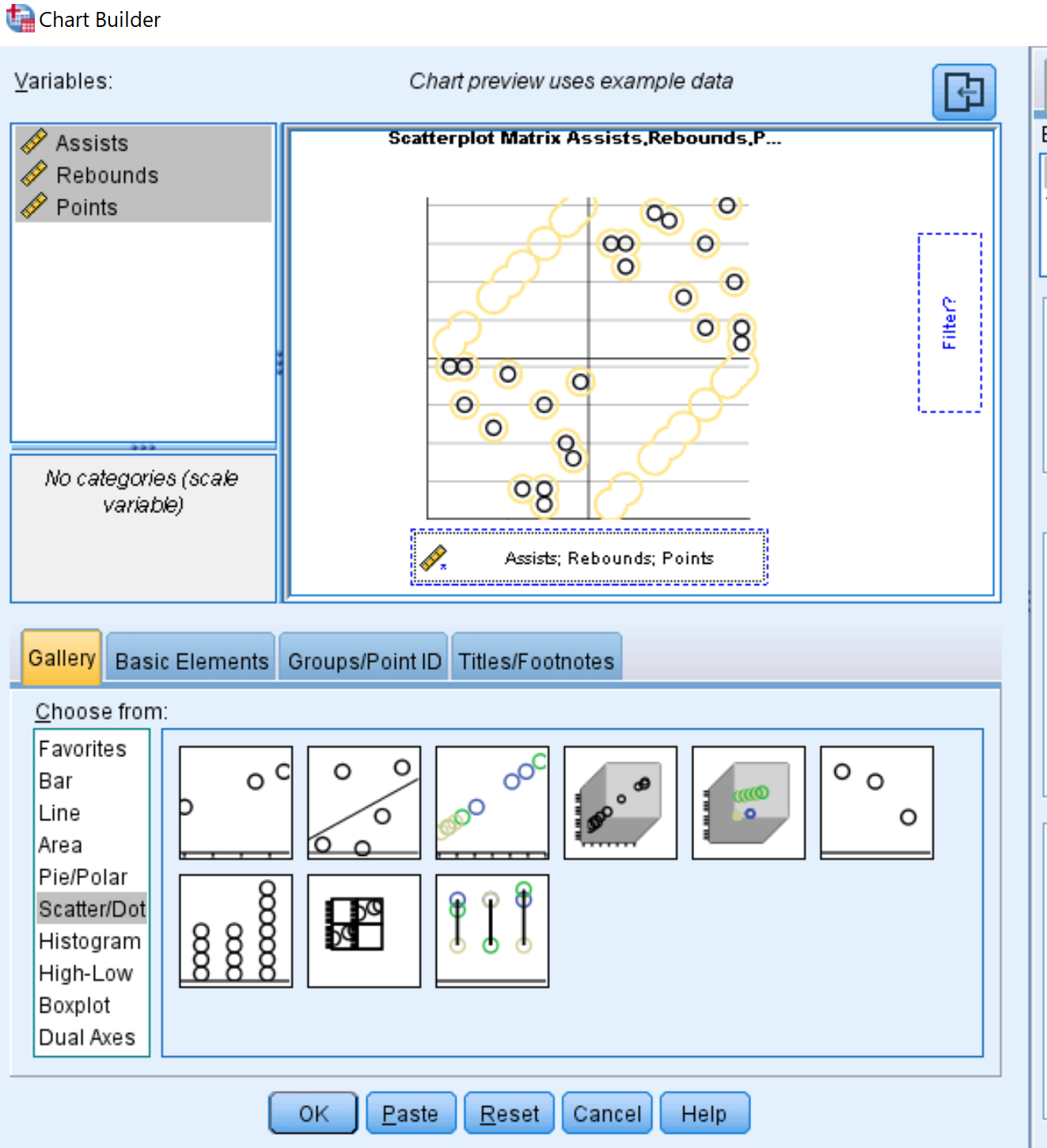
Inside the Chart Builder, you will configure the plot type and drag the variables into the appropriate zones:
- For chart type, click Scatter/Dot.
- Click the image icon that represents the Scatterplot matrix.
- In the Variables box in the top left, hold Ctrl and click on all three variable names. Drag them to the box along the bottom of the chart that says Scattermatrix.
- Lastly, click OK.
The following scatterplot matrix will automatically appear in the output viewer, providing a graphical depiction of all pairwise correlations:
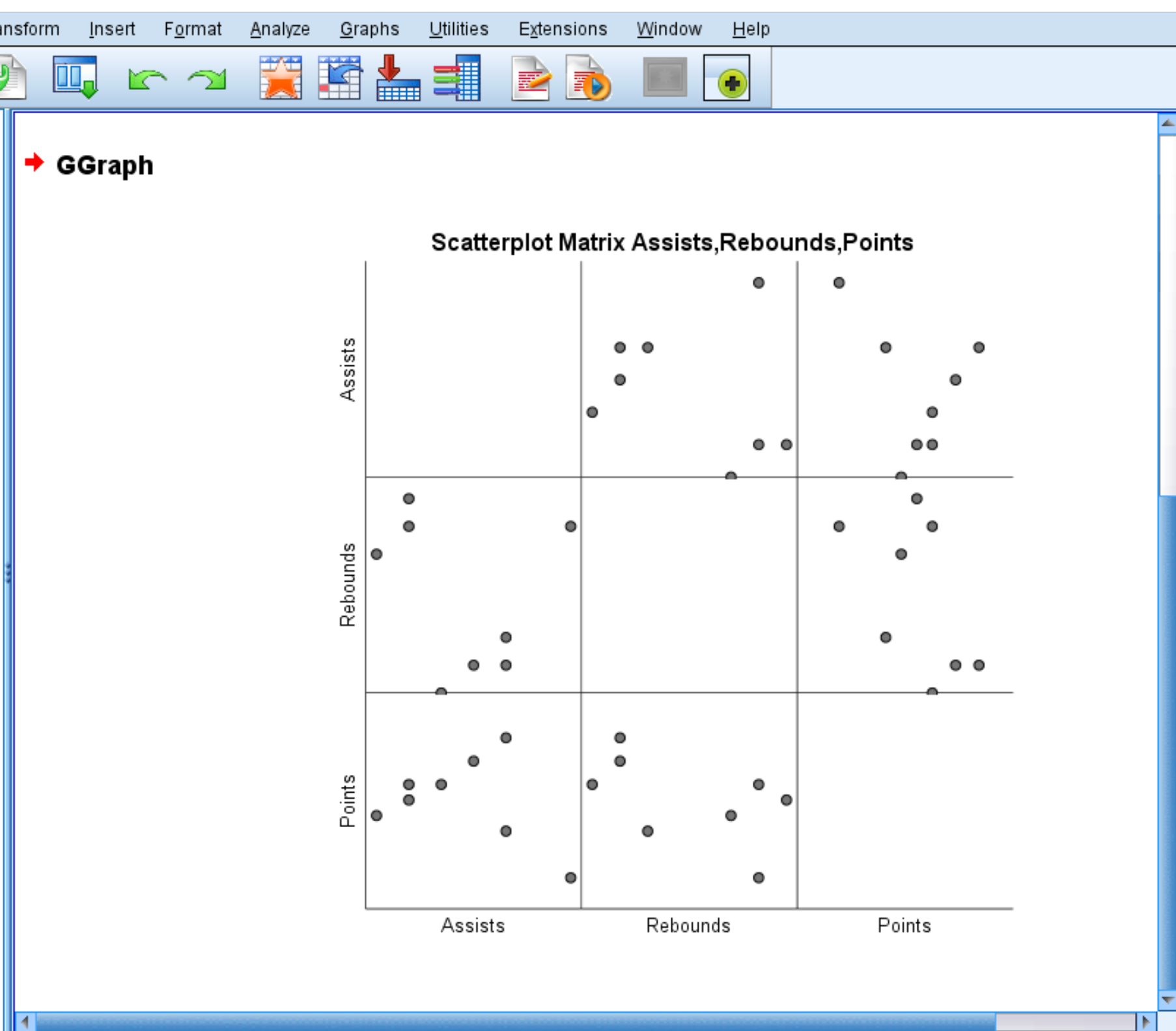
Each individual scatterplot shows the pairwise combinations between two variables. For example, the scatterplot in the bottom left corner shows the pairwise combinations for Points and Assists for each of the 8 players in the dataset. A strong correlation will show points tightly clustered along a line, while a weak correlation will show points scattered randomly. This scatterplot matrix is optional, but it offers a valuable method to visually confirm the linear relationship between variables identified in the numerical correlation matrix.
Cite this article
Mohammed looti (2025). Learn How to Create and Interpret a Correlation Matrix in SPSS. PSYCHOLOGICAL STATISTICS. Retrieved from https://statistics.arabpsychology.com/create-a-correlation-matrix-in-spss/
Mohammed looti. "Learn How to Create and Interpret a Correlation Matrix in SPSS." PSYCHOLOGICAL STATISTICS, 8 Nov. 2025, https://statistics.arabpsychology.com/create-a-correlation-matrix-in-spss/.
Mohammed looti. "Learn How to Create and Interpret a Correlation Matrix in SPSS." PSYCHOLOGICAL STATISTICS, 2025. https://statistics.arabpsychology.com/create-a-correlation-matrix-in-spss/.
Mohammed looti (2025) 'Learn How to Create and Interpret a Correlation Matrix in SPSS', PSYCHOLOGICAL STATISTICS. Available at: https://statistics.arabpsychology.com/create-a-correlation-matrix-in-spss/.
[1] Mohammed looti, "Learn How to Create and Interpret a Correlation Matrix in SPSS," PSYCHOLOGICAL STATISTICS, vol. X, no. Y, ص Z-Z, November, 2025.
Mohammed looti. Learn How to Create and Interpret a Correlation Matrix in SPSS. PSYCHOLOGICAL STATISTICS. 2025;vol(issue):pages.