Table of Contents
Logistic regression is a foundational statistical method employed when the predicted outcome or response variable is binary (dichotomous). Unlike traditional linear regression, which forecasts a continuous numerical result, logistic regression models the inherent probability of a specific event occurring. This methodology is indispensable across various high-stakes fields, including financial risk assessment, medical diagnostics, and sophisticated predictive analytics in sports.
While professional statistical software packages (such as R or SPSS) are typically used for large-scale analysis, Microsoft Excel possesses the robust numerical capabilities necessary to execute complex logistic regression calculations manually. By leveraging the built-in Solver Add-In, we can perform the iterative optimization required to derive accurate model parameters. This comprehensive, step-by-step tutorial demystifies the process of conducting a complete logistic regression analysis directly within the Excel environment, ensuring both accuracy and deep interpretability of the final results.
Defining the Model: A Sports Analytics Case Study
To demonstrate the practical application of this technique, we will utilize a dataset focused on college basketball players. Our objective is to construct a predictive model that determines whether a player is drafted into the NBA. The dependent binary outcome is defined as Draft status (1 = drafted; 0 = not drafted).
The prediction will be based on three key independent explanatory variables derived from the players’ previous season performance: average points (pts), average rebounds (rebs), and average assists (ast). The goal is to isolate the specific influence of each performance metric on the likelihood of achieving professional status.
Structuring Data and Initial Parameter Setup
The initial step requires meticulous organization of the raw data within the Excel spreadsheet. It is vital to structure the input clearly, separating the dependent variable (Draft status) from the independent explanatory variables (pts, rebs, ast) into distinct, labeled columns. Accuracy in this data entry phase is critical, as any error will propagate through the complex optimization routine.

Since our predictive model incorporates three distinct explanatory variables, we require a total of four regression coefficients for the analysis: one coefficient corresponding to each variable and an additional coefficient representing the model’s intercept. Designate a specific range of cells (e.g., B15:B18) to hold these coefficients. Initially, assign a small, arbitrary non-zero value (such as 0.001) to each cell. These placeholder values are essential starting points that the Excel Solver will iteratively adjust to optimize the model’s fit.
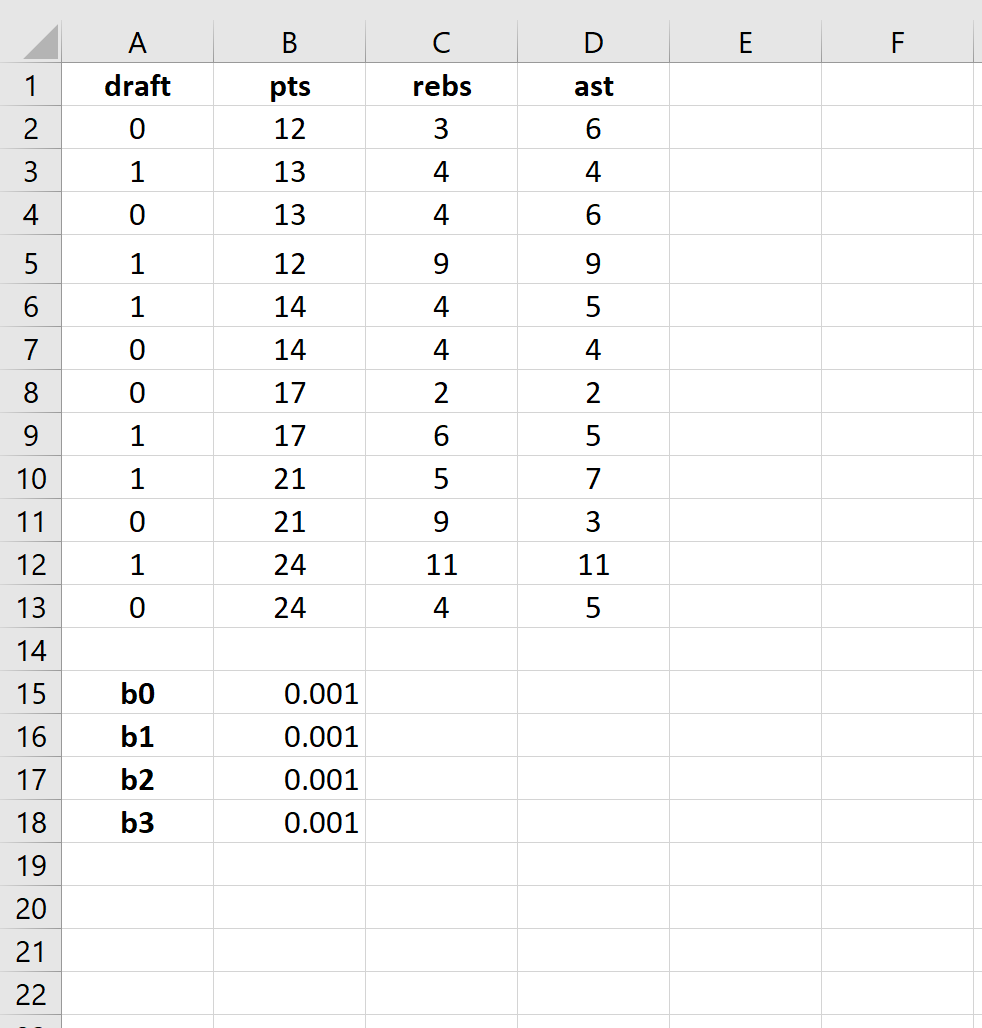
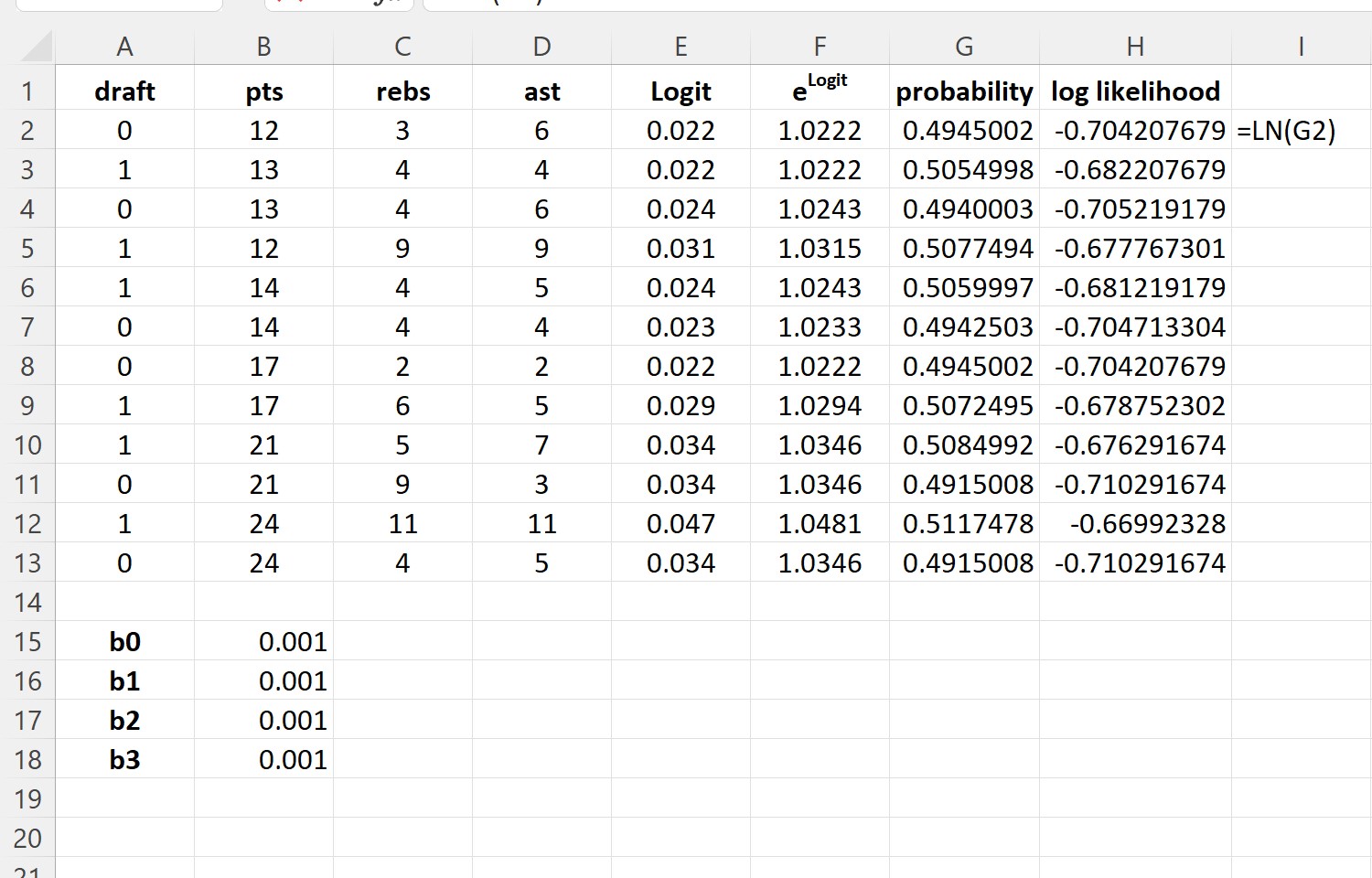
Following the initialization of the coefficients, we must prepare the spreadsheet for the calculation sequence. This involves establishing several new columns that are fundamental to the iterative process of Maximum Likelihood Estimation. These new calculations include the logit (the linear predictor), the exponential transformation of the logit (elogit), the resulting predicted probability (P), and finally, the log likelihood score.
Modeling the Linear Predictor and Probability
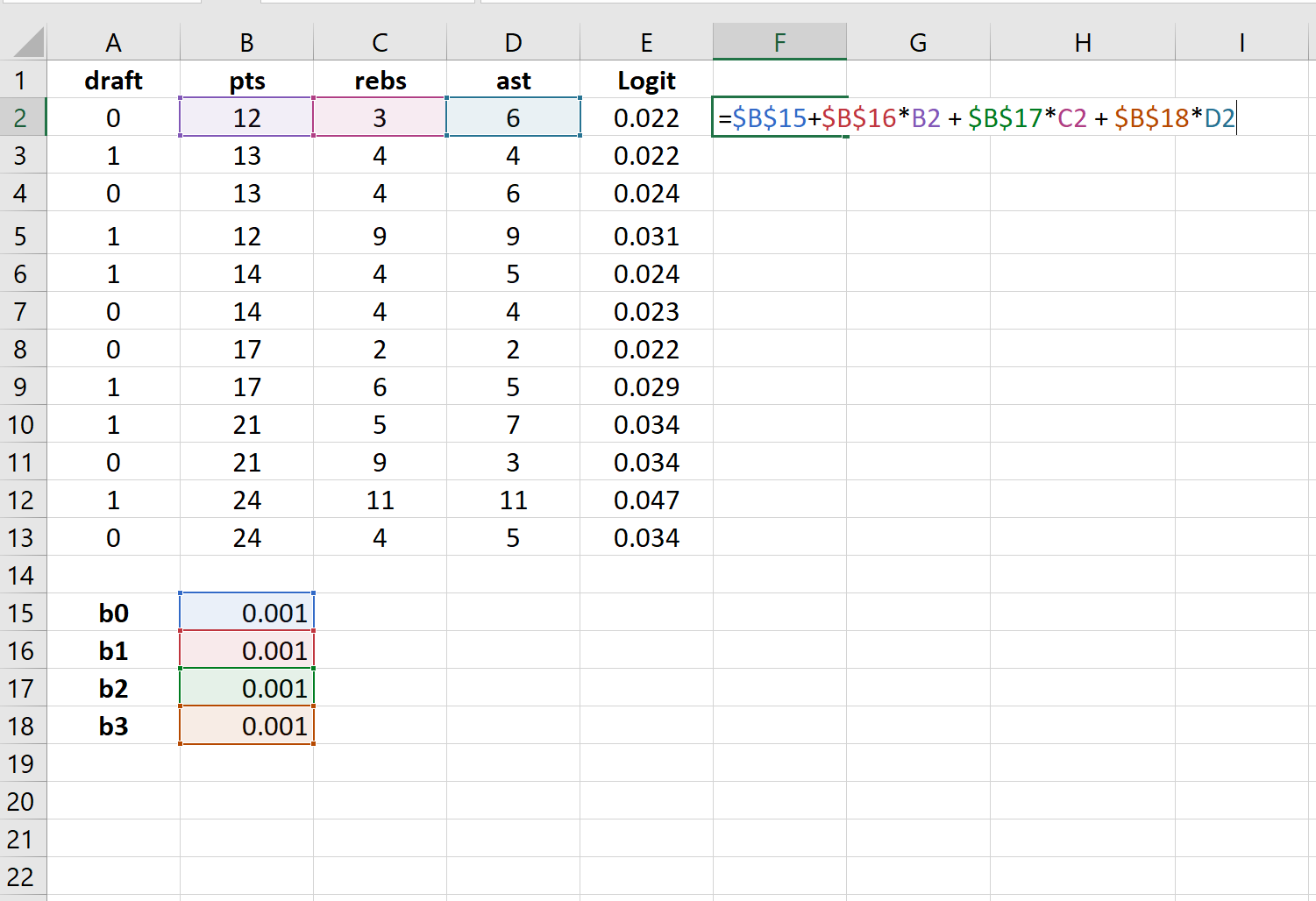
The first major calculation is the logit function. Conceptually, the logit is the linear core of the logistic regression model, representing the weighted sum of the predictor variables and their corresponding initial regression coefficients. This calculation transforms the binary prediction problem into a linear scale. We generate the logit column by applying the following formula to each observation in the dataset: Logit = Intercept + (Coefficientpts * pts) + (Coefficientrebs * rebs) + (Coefficientast * ast).
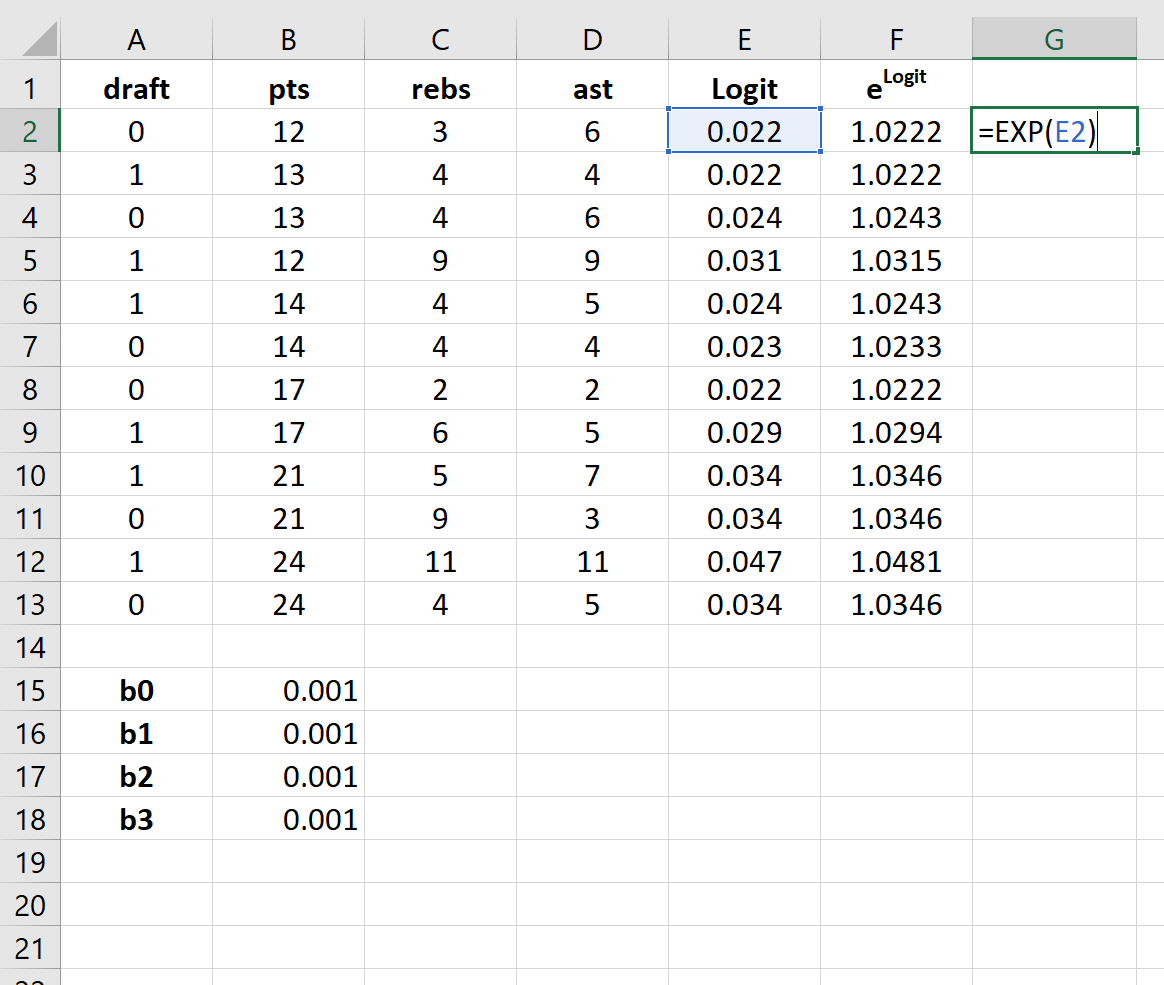
The logit value, which can range from negative to positive infinity, must be converted into a probability value that is constrained between 0 and 1. The first step in this conversion is calculating the exponential of the logit value (elogit). This is easily accomplished in Excel using the built-in EXP() function, linking it directly to the cell containing the calculated logit for that observation.
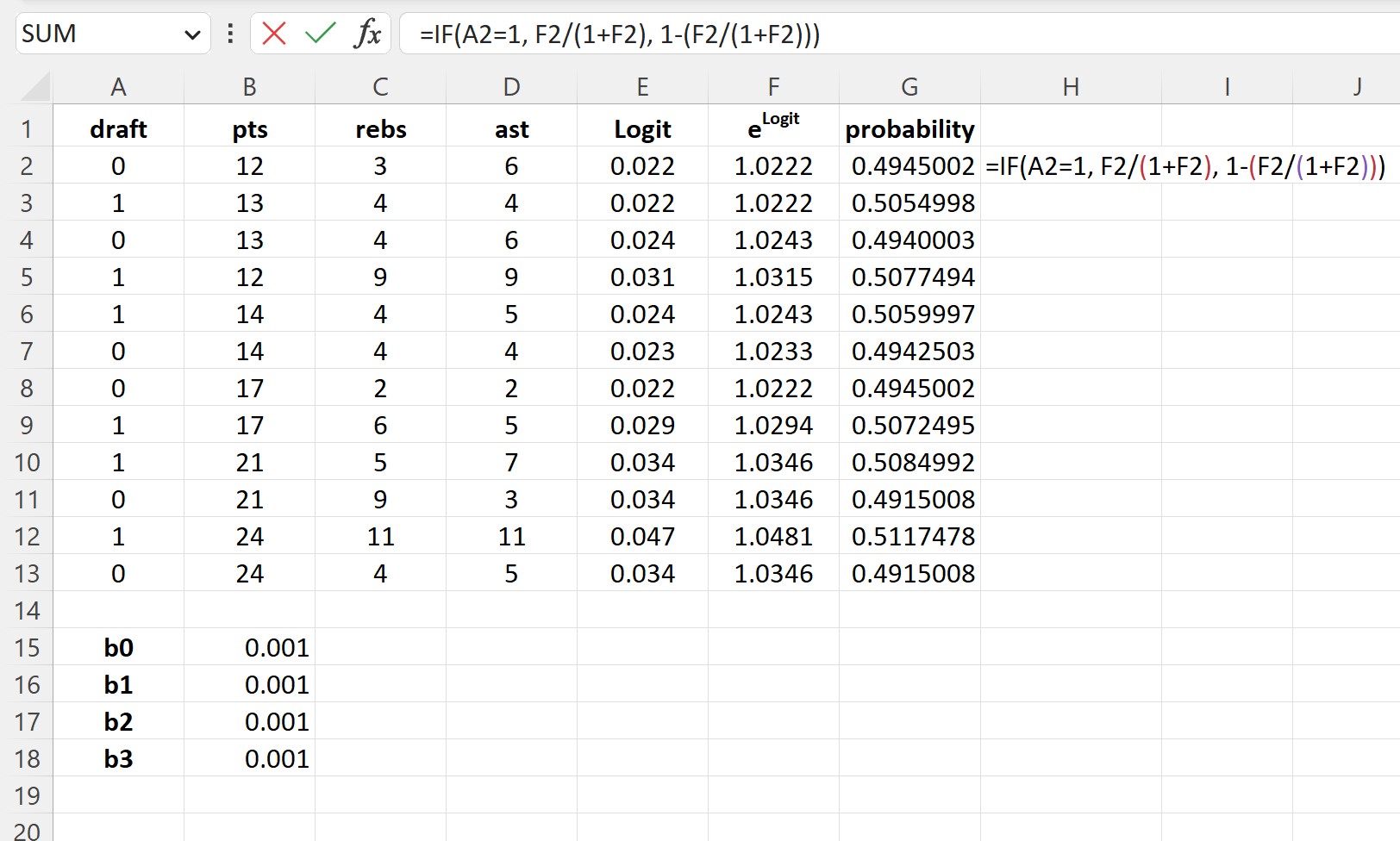
With elogit established, we can now calculate the final predicted probability (P) that the event occurs (i.e., Draft = 1). The standard logistic function mathematically defines this probability as P = elogit / (1 + elogit). This formula is implemented across the entire probability column, providing an initial probability estimate for every player based on the arbitrary starting coefficient values.
Implementing the Maximum Likelihood Criterion
In logistic regression, the model is calibrated by maximizing the log likelihood function. This function serves as the key metric of model fitness, quantifying how accurately the predicted probabilities align with the actual observed binary outcomes (0 or 1). For each observation, the log likelihood is calculated using the natural logarithm (LN) of the resulting probability (P) or its complement (1-P), depending on the outcome (Y):
Log likelihood = LN(Probability)
Populate the log likelihood column using this natural logarithm calculation, referencing the probability value derived in the previous step.
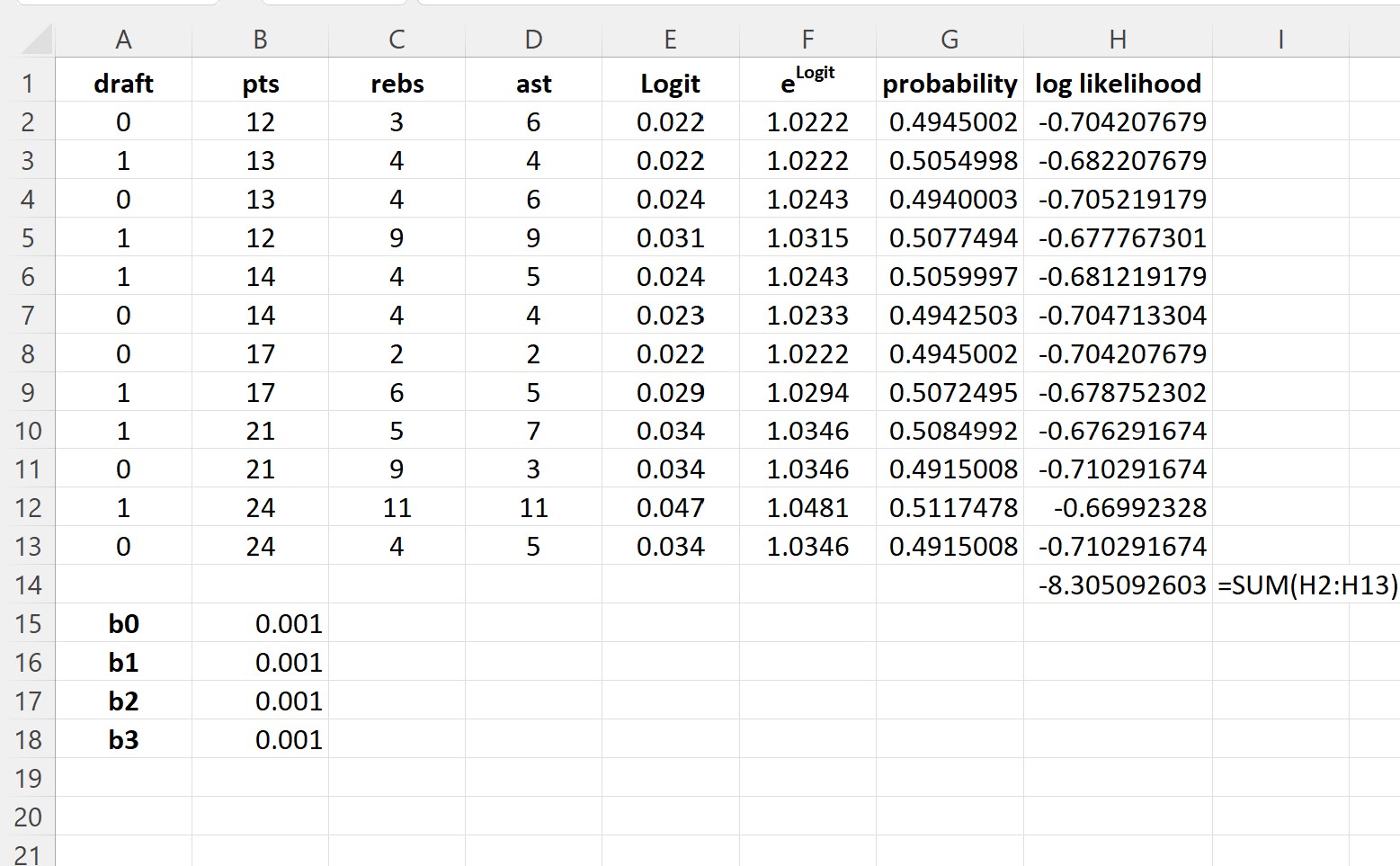
The overall goal of the optimization process is to determine the parameter estimates (the regression coefficients) that yield the highest possible fit across the entire dataset. To prepare for optimization, create a dedicated cell (e.g., H14) to calculate the total sum of all individual log likelihood scores. This single, aggregated value is the objective function that the Excel Solver will manipulate and maximize.
Optimizing Parameters Using the Excel Solver
The Solver Add-In is the engine of this analysis, providing the necessary numerical optimization to achieve Maximum Likelihood Estimation. If the Solver icon is not visible in the Analysis group under the Data tab, it must first be installed:
- Click File.
- Click Options.
- Click Add-Ins.
- Select the Solver Add-In, then click Go.
- In the new dialog box, check the box next to Solver Add-In, then click OK.
Once installed, navigate to the Data tab and click Solver to configure the optimization parameters. Careful configuration is necessary to ensure the calculation converges correctly toward the maximum log likelihood:
- Set Objective: Select the cell containing the calculated sum of the log likelihoods (e.g., H14). Critically, ensure the objective is set to Max (Maximize).
- By Changing Variable Cells: Select the range containing the initial regression coefficients (e.g., B15:B18). These are the values the Solver will adjust.
- Make Unconstrained Variables Non-Negative: This box must be unchecked, as regression coefficients in logistic models frequently take on negative values.
- Select a Solving Method: Choose GRG Nonlinear. This method is specifically designed for complex, non-linear optimization problems like maximum likelihood estimation in logistic regression.
Click Solve. The Solver will run its iterations, finding the optimal set of coefficient values that maximize the objective function.
Interpreting Results and Predictive Application
Upon successful convergence, the Solver will display the final, optimized regression coefficients that provide the best predictive fit for the basketball drafting data:
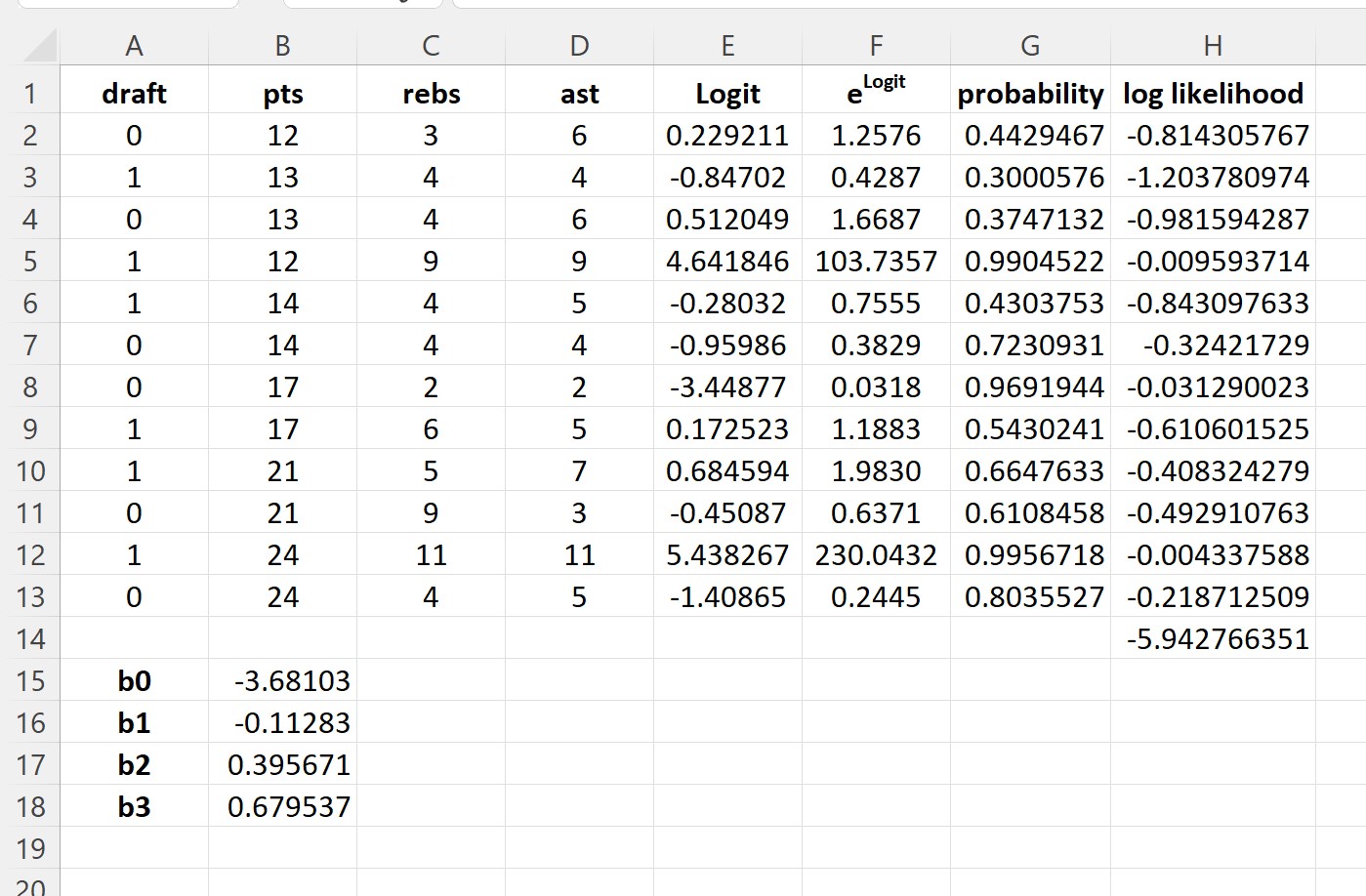
A crucial point of interpretation is that the default coefficients derived in this specific setup are designed to predict the probability that the event does not occur (P(Draft = 0)). However, conventional statistical reporting and practical application usually focus on predicting the success case (P(Draft = 1)).
To correct this and make the coefficients interpretable for predicting P(Draft = 1), you must simply reverse the sign of every calculated regression coefficient (multiplying each by -1).
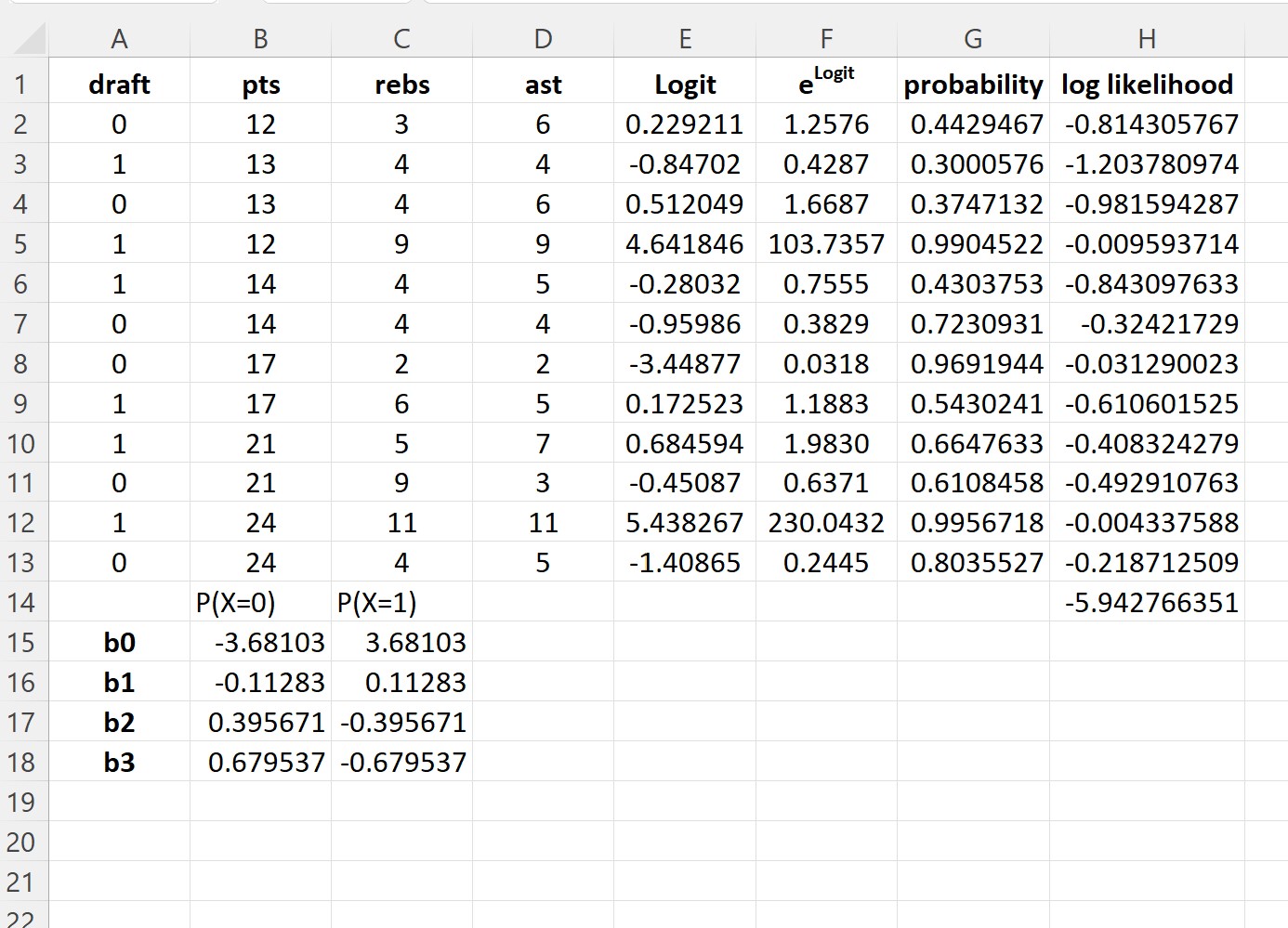
These adjusted coefficients are now ready for practical predictive use. Consider a new hypothetical player who averaged 14 points, 4 rebounds, and 5 assists. We can calculate the probability of this player being drafted (P(Draft = 1)) by plugging these values into the full logistic function equation:
P(draft = 1) = e3.681193 + 0.112827*(14) -0.39568*(4) – 0.67954*(5) / (1+e3.681193 + 0.112827*(14) -0.39568*(4) – 0.67954*(5)) = 0.57.
Since the resulting probability (0.57) exceeds the standard classification threshold of 0.5, our logistic regression model successfully predicts that this hypothetical player has a high likelihood of being drafted into the NBA. This exercise confirms that Excel, when combined with the Solver Add-In, is a powerful and accessible platform for executing and applying advanced statistical modeling techniques.
Related Resources:
Cite this article
Mohammed looti (2025). Logistic Regression Tutorial: A Step-by-Step Guide with Excel Examples. PSYCHOLOGICAL STATISTICS. Retrieved from https://statistics.arabpsychology.com/perform-logistic-regression-in-excel/
Mohammed looti. "Logistic Regression Tutorial: A Step-by-Step Guide with Excel Examples." PSYCHOLOGICAL STATISTICS, 8 Nov. 2025, https://statistics.arabpsychology.com/perform-logistic-regression-in-excel/.
Mohammed looti. "Logistic Regression Tutorial: A Step-by-Step Guide with Excel Examples." PSYCHOLOGICAL STATISTICS, 2025. https://statistics.arabpsychology.com/perform-logistic-regression-in-excel/.
Mohammed looti (2025) 'Logistic Regression Tutorial: A Step-by-Step Guide with Excel Examples', PSYCHOLOGICAL STATISTICS. Available at: https://statistics.arabpsychology.com/perform-logistic-regression-in-excel/.
[1] Mohammed looti, "Logistic Regression Tutorial: A Step-by-Step Guide with Excel Examples," PSYCHOLOGICAL STATISTICS, vol. X, no. Y, ص Z-Z, November, 2025.
Mohammed looti. Logistic Regression Tutorial: A Step-by-Step Guide with Excel Examples. PSYCHOLOGICAL STATISTICS. 2025;vol(issue):pages.